
Complete the following task before continuing with this procedure: Configure a Meshpoint Profile.
Non-root APs with a single meshpoint radio configured use Mesh ACS (Automatic Channel Selection) by default. This allows the non-root APs to follow the channel and width of the uplink (root) AP. The non-root AP scans channels to find the best path to the root AP. Use the Preferred Root and Preferred Neighbor settings to influence the path to the root AP. Non-root APs with multiple radios configured allow for the option to use Mesh ACS (Auto) or Fixed Channel. See Meshpoint Radio RF Policy Assignment and Configuration for details.

Note
Upon upgrade from earlier revisions, non-root APs in a mesh network are converted to Mesh ACS to determine the best channel.Use this procedure to edit the default device settings for an AP in a Mesh network.
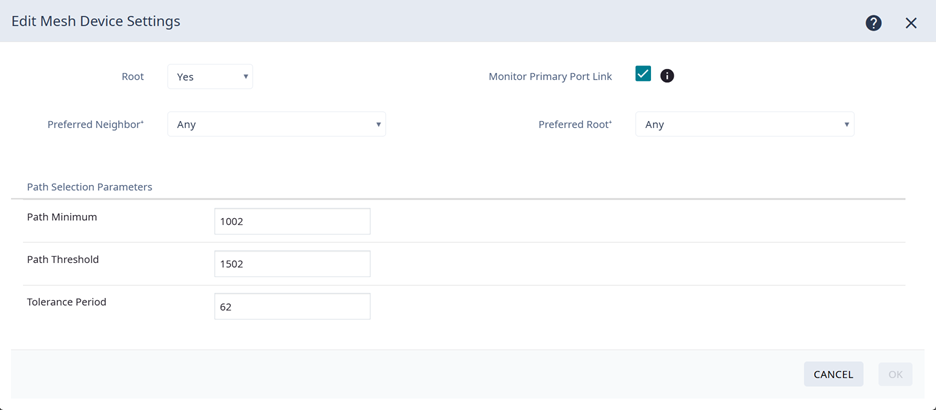
| Option | AP Behavior |
|---|---|
| Root | A root meshpoint is defined as a meshpoint that is connected to the WAN and provides a wired backhaul to the network. Select the role of this meshpoint.
Note: Access points that use Wi-Fi 6 and higher standards can be part of the same mesh network, but they cannot participate in a mesh network with AP39xx (Wi-Fi 5) models. AP39xx models must be in a separate mesh network from APs using more advanced Wi-Fi standards.
|
| Monitor Primary Port Link | Select the adjacent check box to enable Monitor Primary Port Link.
|
| Preferred Neighbor | (Available for non-root APs) Select the preferred Neighbor (AP name and radio) from a list of APs with a root or non-root mesh radio. When a non-root AP can see mesh beacons from more than one neighbor, this setting configures the AP to prefer one beacon over all others when choosing a path back to the root. |
| Preferred Root | (Available for non-root APs) Select the preferred root AP from a list of APs with a root mesh radio. Use this setting to balance the number of meshpoints reporting to a specific root AP. |
| Path Minimum | The minimum root path metric value is used to evaluate the channel during the Mesh ACS scan process. Only the meshpoint with a root path metric less than the minimum root path is considered a candidate meshpoint that can hop to the meshpoint root. Valid values are 100-20000. Default value is 1000. The lower metric value indicates a better quality mesh link to the root. |
| Path Threshold | The maximum root path metric value that determines when to evaluate the meshpoint radio channel for a better path to the gateway. When the current path metric value exceeds this threshold, an ACS scan is triggered on the meshpoint. Valid values are 800-65535. Default value is 1500. Setting this value below 1500 will result in more frequent channel scans. |
| Tolerance Period |
This is a buffer period (in seconds) between when the metric value exceeds the Path Threshold and the scan begins. Set the number of seconds to allow the root path metric to recover before a scan begins. Valid values are 10-600. Default value is 60. |
Note
Do not rename an AP after it is added to a mesh network. Renaming the device affects the display of the reported statistics.