After you create and configure the virtual machine initial setup, add and configure the networking devices, as well as other additional settings. To apply virtual machine settings:
Procedure
Select the virtual machine that you created from the KVM server host name.
Select Hardware.
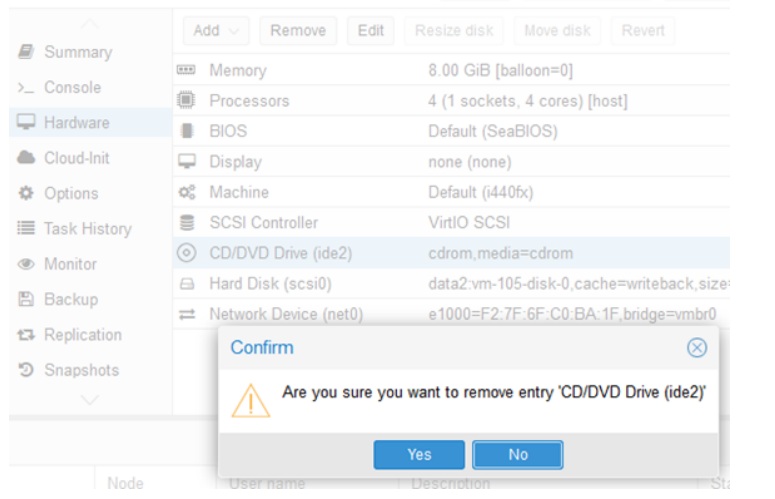
Select CD/DVD Drive > Remove.
Select Yes to confirm removing the CD/DVD Drive entry.
Confirmation Screen
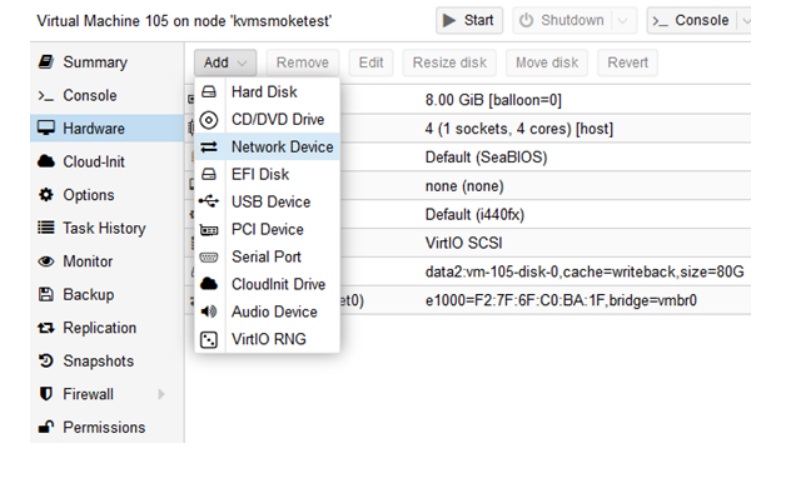
Select Add > Network Device to add data port interfaces.
Add Network Device
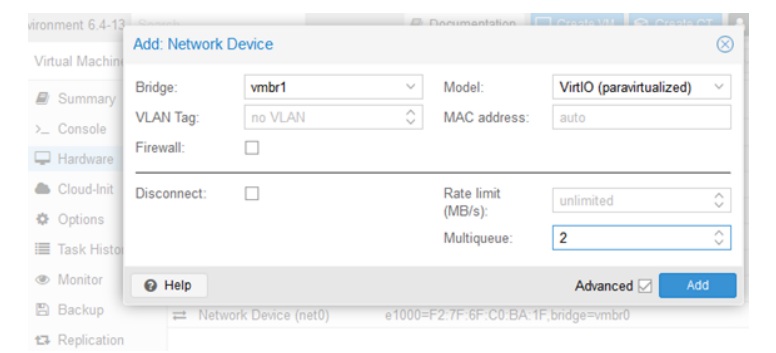
Configure the following Add: Network Device settings:
Set the Bridge for the first data port interface.
Set the model to VirtIO (paravirtualized).
Clear Firewall.
Set Multiqueue to 2 for VE6120K and to 4 for VE6125K.
Select Add.
Configure Network Device Settings
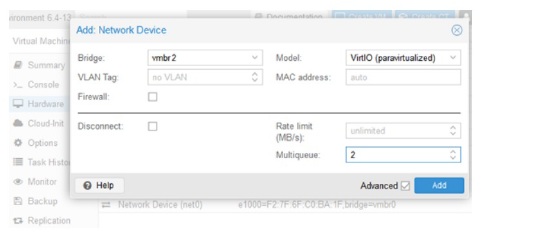
Select Add > Network Device again, and select Bridge for the second data port interface and configure the other values as described in the previous step.
Select Bridge
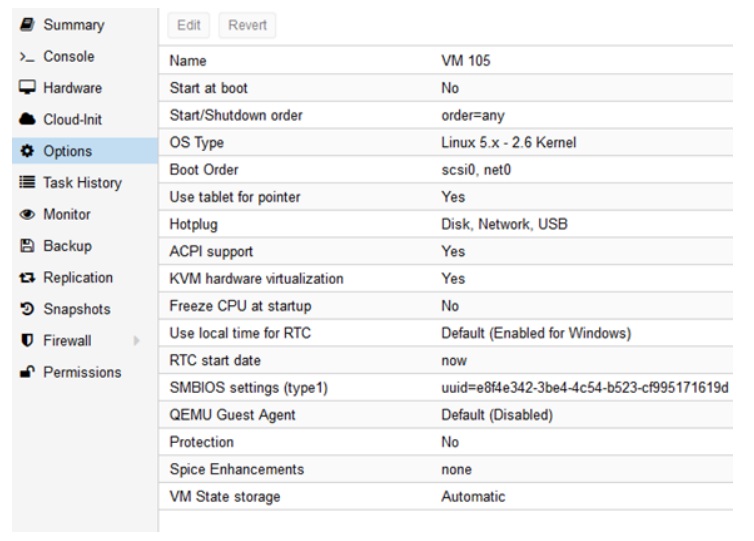
Select Options.
Virtual Machine Options
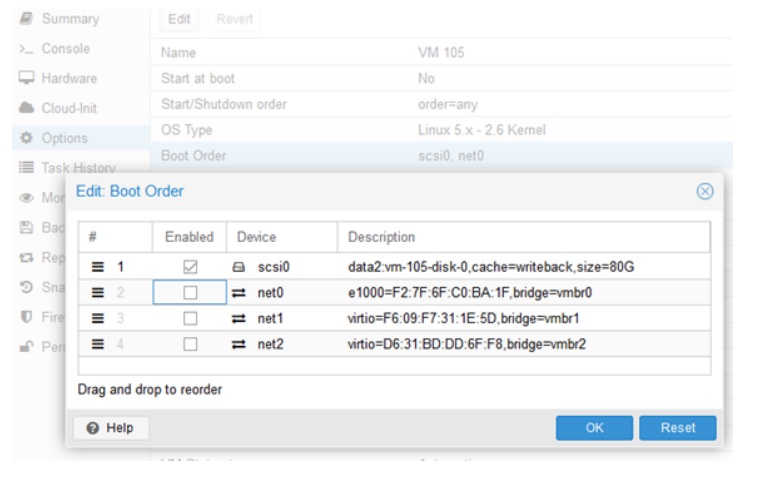
Select Boot Order > Edit.
Clear all the edit options except scsi0, and select OK.
Edit Boot Order
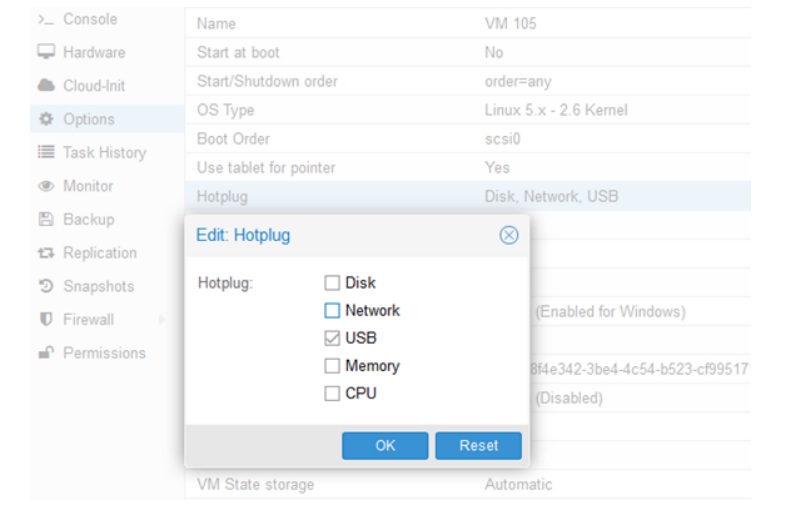
Select Hotplug > Edit.
Clear all the edit options except USB, and select OK.
Edit Hotplug Screen
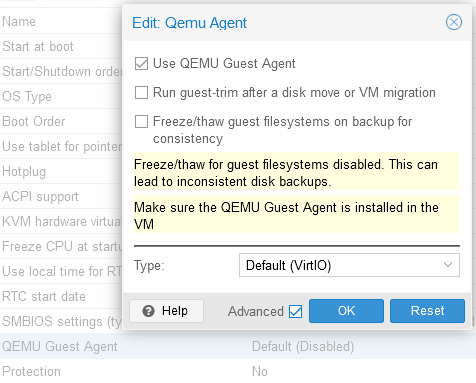
Enable QEMU Guest Agent:
Select QEMU Guest Agent > Edit.
Clear all the edit options except QEMU Guest Agent.