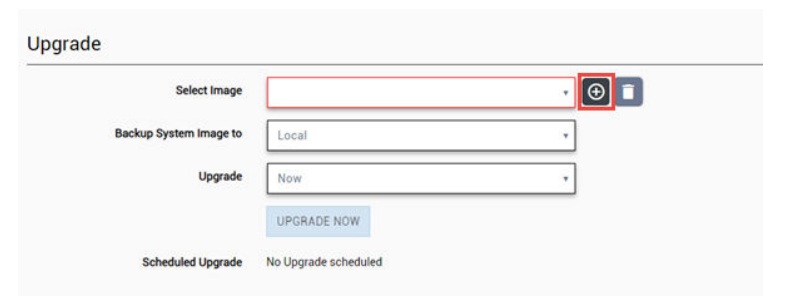
Select Software Upgrade tab, and navigate to the Upgrade section.
To add the image file, select the plus icon.
Upgrade Screen
The Copy Upgrade Image window is displayed.
To copy an upgrade or backup image to ExtremeCloud IQ
Controller, configure the following parameters:
Image Type
Indicates the type of image file used. Valid values are:
Upgrade
Backup
Destination
Destination of the uploaded image file:
Local
Flash (The Flash drive must be mounted.)
Upload Method
Method used to upload image file to appliance. Valid values are:
HTTP — Indicates to upload from a local workstation.
FTP — Indicates to upload from the corresponding server.
SCP — Indicates to upload from the corresponding server.
When the Upload Method is FTP or SCP, configure the server properties.
Copy Image from Local Drive
When the Upload Method is HTTP, drag image onto ExtremeCloud IQ
Controller or select field to navigate to local file directory.
Select Image
Due to a storage space limitation, ExtremeCloud IQ
Controller limits the number of locally available upgrade images. If necessary, you can delete an older image before you upgrade to the latest image. To delete an image from ExtremeCloud IQ
Controller, from the Select Image field, select an image and select .


 .
.