VE6120K/VE6125K Virtual Appliances Installation Guide KVM Platform
>
Virtual Appliance Configuration
> Manage the Flash Memory
Extreme Networks, Inc. July 01, 2026
Search this document
Print this page
Email this page
View PDF
Previous
Next
Abstract
Preface
Text Conventions
Documentation and Training
Help and Support
Send Feedback
Overview
Virtual Appliance Deployment
Deployment Requirements
Connectivity Requirements
Download a VE6120K/VE6125K Image
Install and Deploy the Virtual Appliance Image - Generic Procedure
Install and Deploy the Virtual Appliance Image - Proxmox VE Procedure
Configure the Virtual Machine
Launch the Virtual Machine
Virtual Appliance Configuration
Access the Virtual Appliance Console
Configure the VE6120K/VE6125K Using the Basic Configuration Wizard
Set up the VE6120K/VE6125K Appliance Using the Basic Configuration Wizard
Upgrade the VE6120K/VE6125K Software
Perform a Backup
Copy Backup
Set Up the Virtual Appliance to Accept USB Flash Drives on a Shutdown VM - Generic Procedure
Set Up the Virtual Appliance to Accept USB Flash Drives on a Shutdown VM - Proxmox VE Procedure
Set Up the Virtual Appliance to Accept USB Flash Drives on an Operational VM - Proxmox VE Procedure
Manage the Flash Memory
Remove the Flash Drive - Generic Procedure
Remove the Flash Drive from a Proxmox VE Shutdown VM
Remove the Flash Drive from a Proxmox VE Operational VM
Generate and Install the Activation Package
Install the Activation Package
Subscription License
Shut Down and Restart a Virtual Machine
Shut Down and Restart a Virtual Machine on Proxmox VE server
Configure Bridges for the Virtual Appliance
Create a New Bridge on the KVM Server - Generic Procedure
Create a New Bridge on the KVM Server - Proxmox VE Procedure
Configure the Bridge for Jumbo Frames Support - Generic Procedure
Configure the Bridge for Jumbo Frames Support - Proxmox VE Procedure
Manage the Flash Memory
About this task
Follow these steps to manage flash memory:
Procedure
Log into the
ExtremeCloud IQ Controller
using your credentials.
In the left pane, from the
Administration
drop-down, select
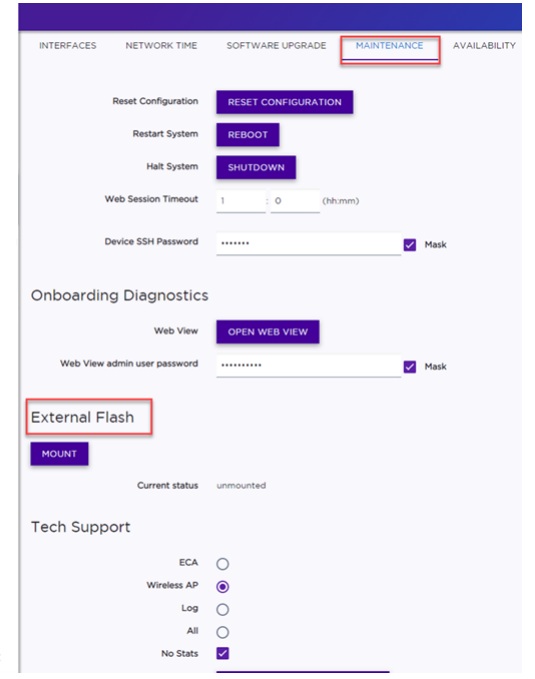
System > Maintenance > External Flash
option.
Use the
Mount/Unmount
options to mount and unmount flash memory respectively.
Flash Memory Maintenance Window