The 5320 Series provides multiple options for mounting or installing the switch.
Mount Options
You can mount or install the device in the following ways:
The 5320-16P-4XE, 5320-16P-4XE-DC, and the 5320-16P-2MXT-2X support wall-mounting and under-the-table mounting. The wall-mounting and under-the-table mounting kits are ordered separately for model 5320-16P-2MXT-2X. Anchors and wood screws are included with the wall-mounting kit.
Additionally, the 5320-16P-2MXT-2X supports VESA mounting and DIN-rail mounting.
Mount the Device on a Table
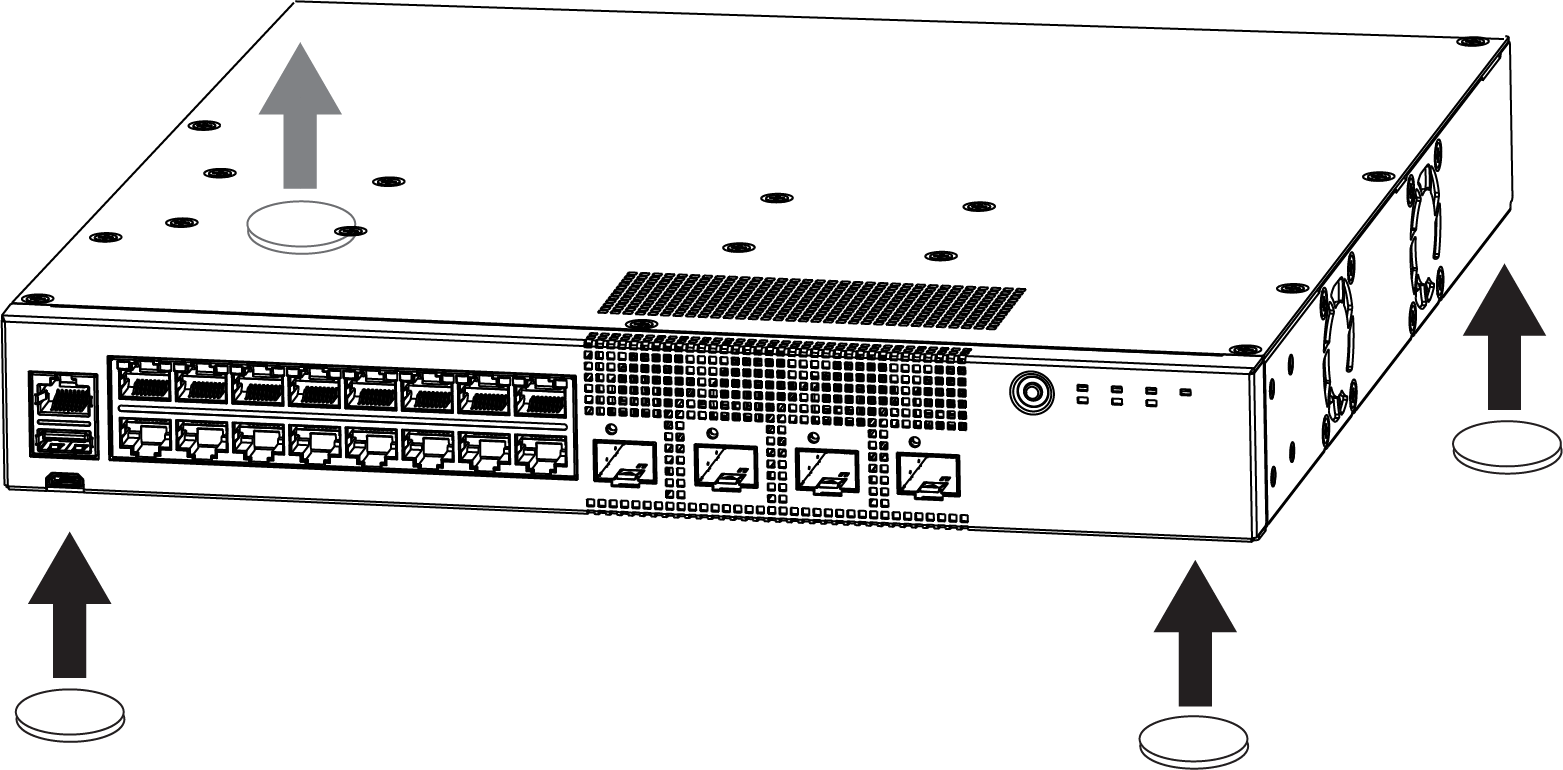
Four self-adhesive rubber pads are included with the switch for mounting on tables or other flat surfaces. The pads keep the switch from scratching the supporting surface and help ensure adequate airflow around the switches when they are mounted on top of one another. You can safely place up to four switches on top of one another.
Caution
Do not place other equipment on top of table-mounted switches.
To mount a switch on a table - or any firm, flat surface - follow these steps.
Carefully separate the four rubber pads that are provided
Apply the pads to the underside of the switch by placing a pad at each corner, ensuring that all corners are aligned. Mount the Device on a Table shows the locations for attaching the rubber mounting feet on the switch.
Mount the Device on a Table
Attach the Switch to a Rack or Cabinet
This procedure uses a two-post mounting kit, which accommodates rack posts 3 inches or 6 inches wide.
The two-post rack mount kit XN-2P-RMKIT-006 is required for 5320-24T-8XE, 5320-24P-8XE, 5320-48T-8XE, and 5320-48P-8XE switches. The two-post rack mount kit XN-2P-RMKIT-007 is available for 5320-16P-4XE and 5320-16P-4XE-DC switches. The 1U two-post rack mount kit XN-2P-RMKIT-011 is also available for 5320-16P-4XE and 5320-16P-4XE-DC switches. The two-post rack mount kit XN-2P-RMKIT-012 is available for the 5320-16P-2MXT-2X switch. The two-post rack mount kit XN-2P-RMKIT-008 is required for 5320-24T-4X-XT and 5320-24T-24S-4XE-XT switches. The two-post rack mount kits can also be installed in a four-post rack, using just the two front posts or the two back posts.
The rack mount kit contains an instruction sheet, along with the following components:
Mounting ears (2 count)
Mounting ear screws (8 count)
Rack mounting ears can support two configurations: flush- and mid-mount.
Take care to load the rack so that it is not top-heavy. Start installing equipment at the bottom and work up.
To attach a switch to a two-post rack, follow these steps.
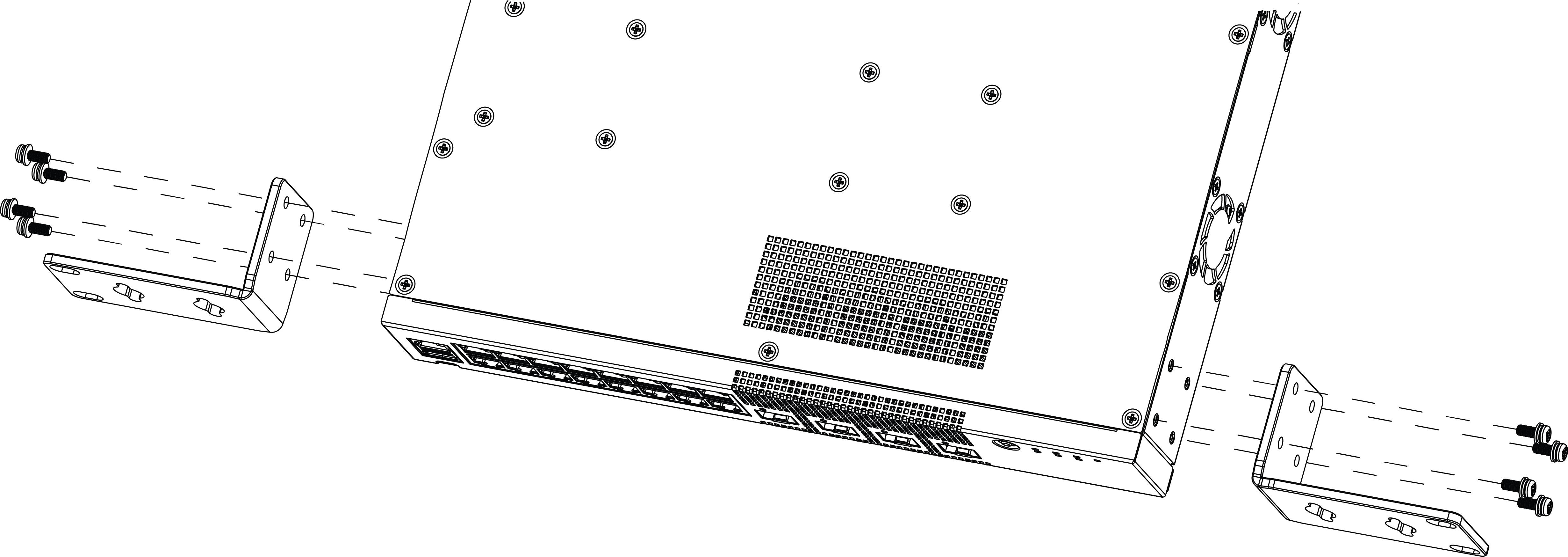
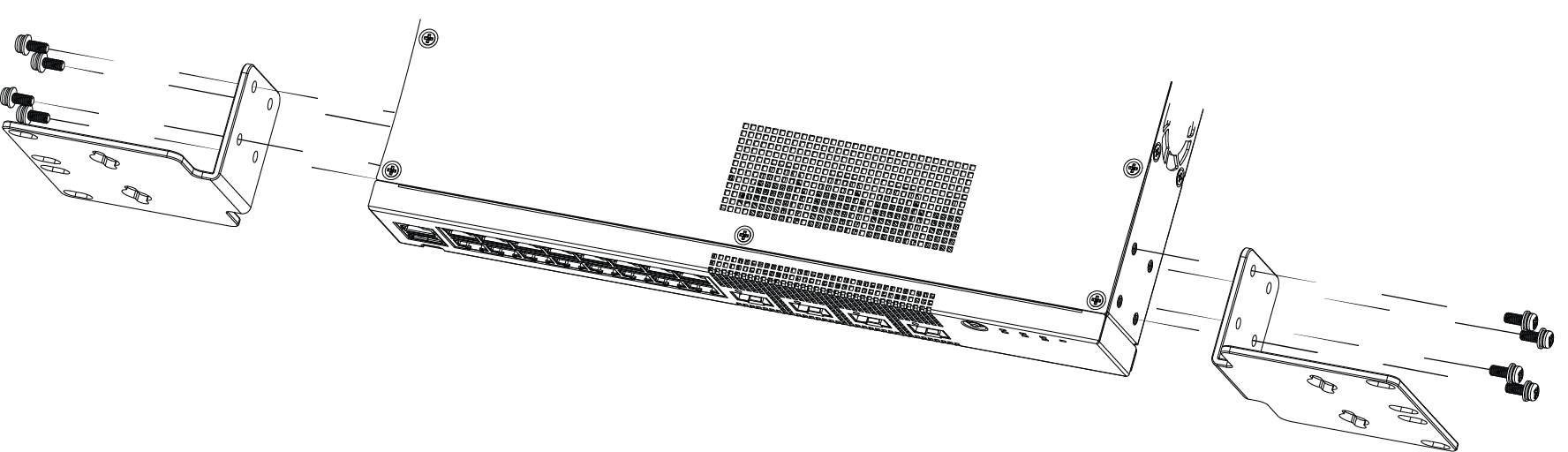
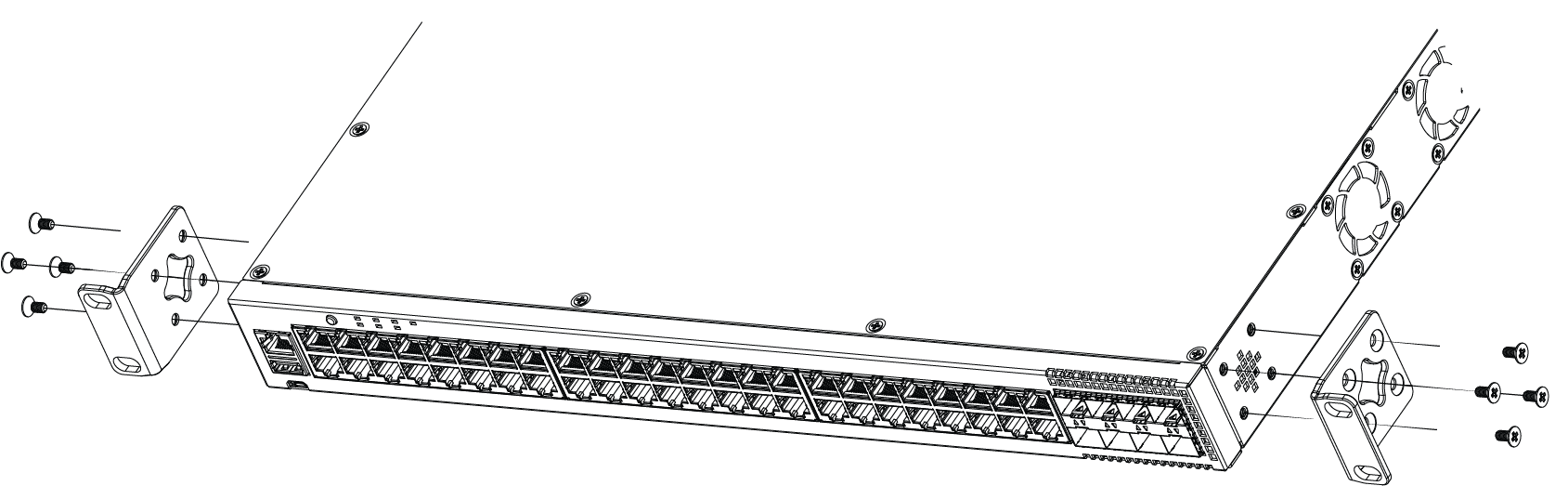
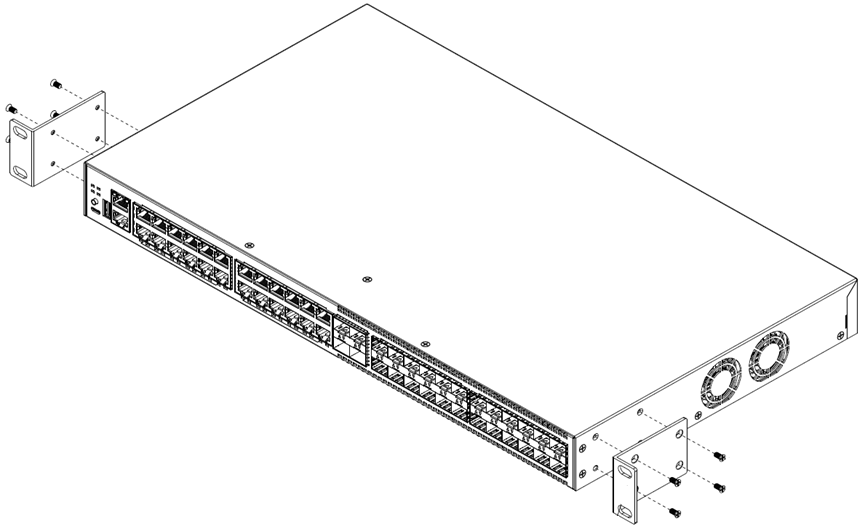
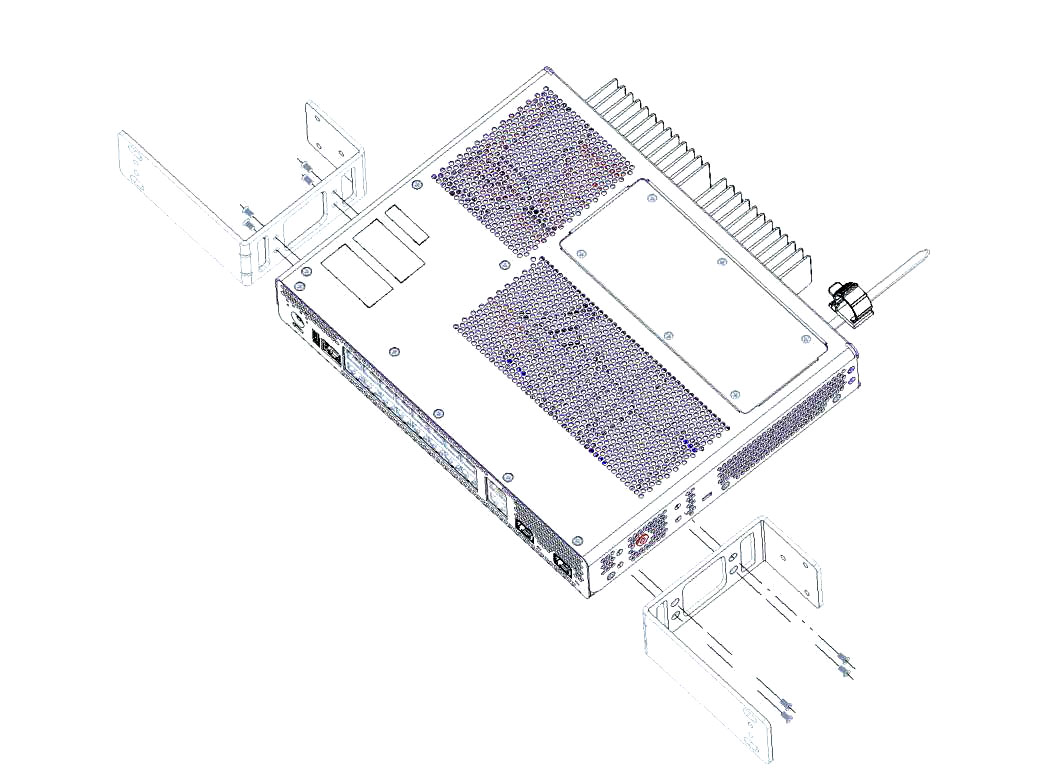
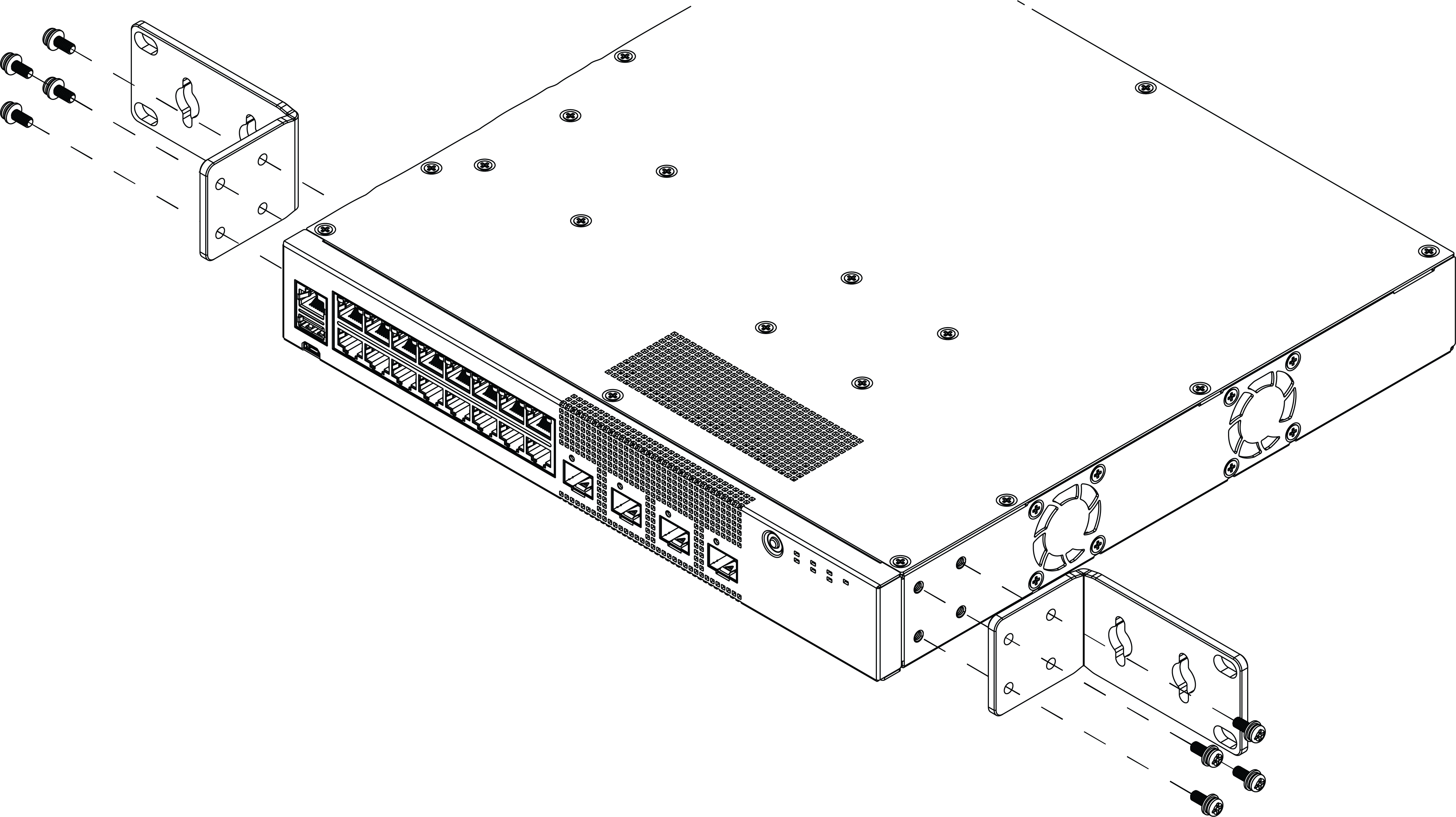
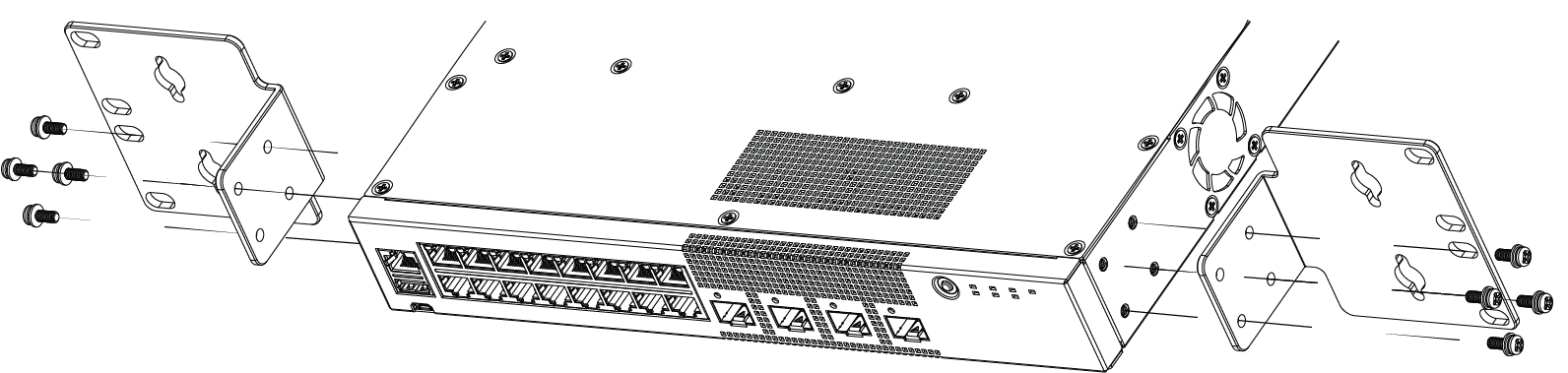
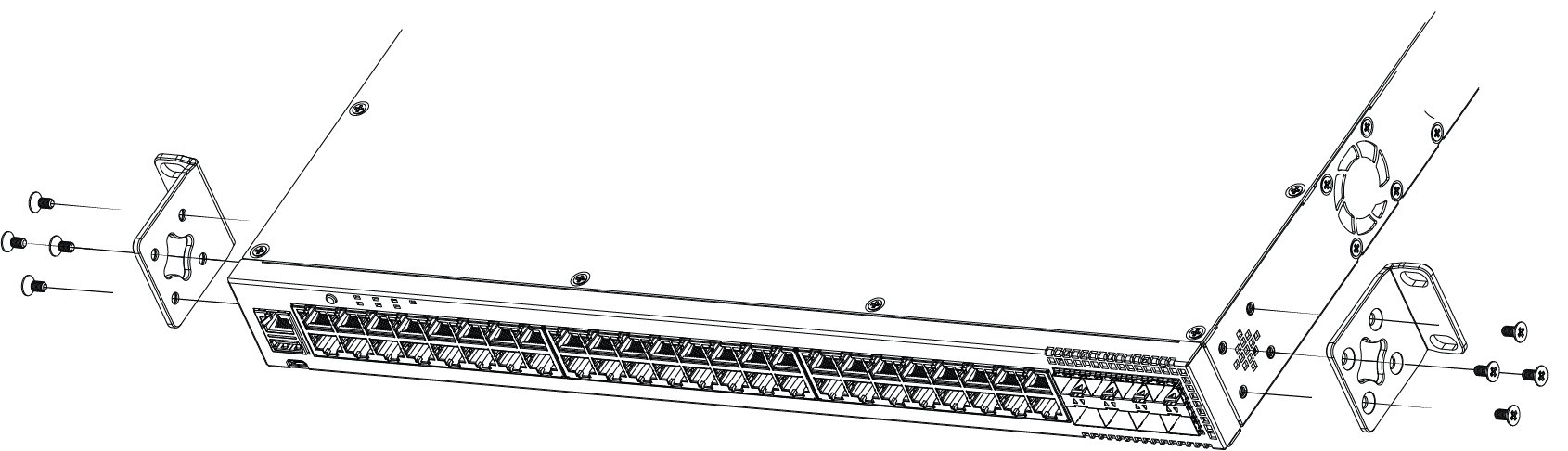
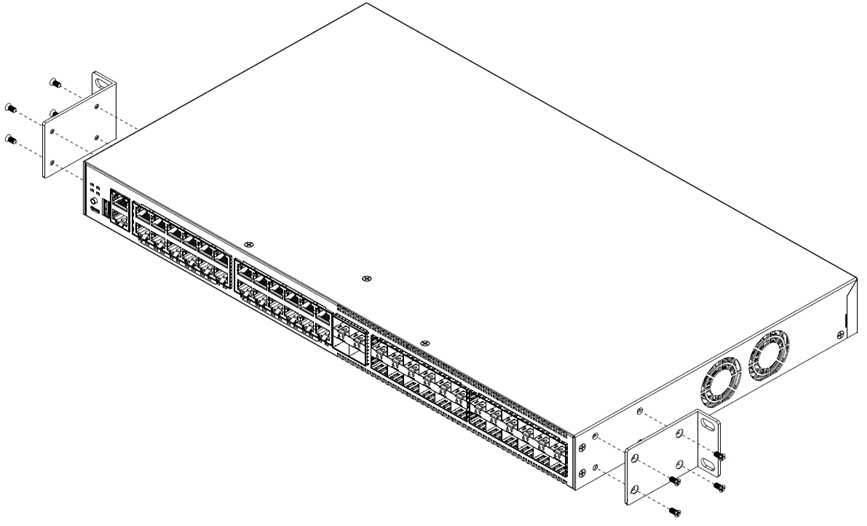
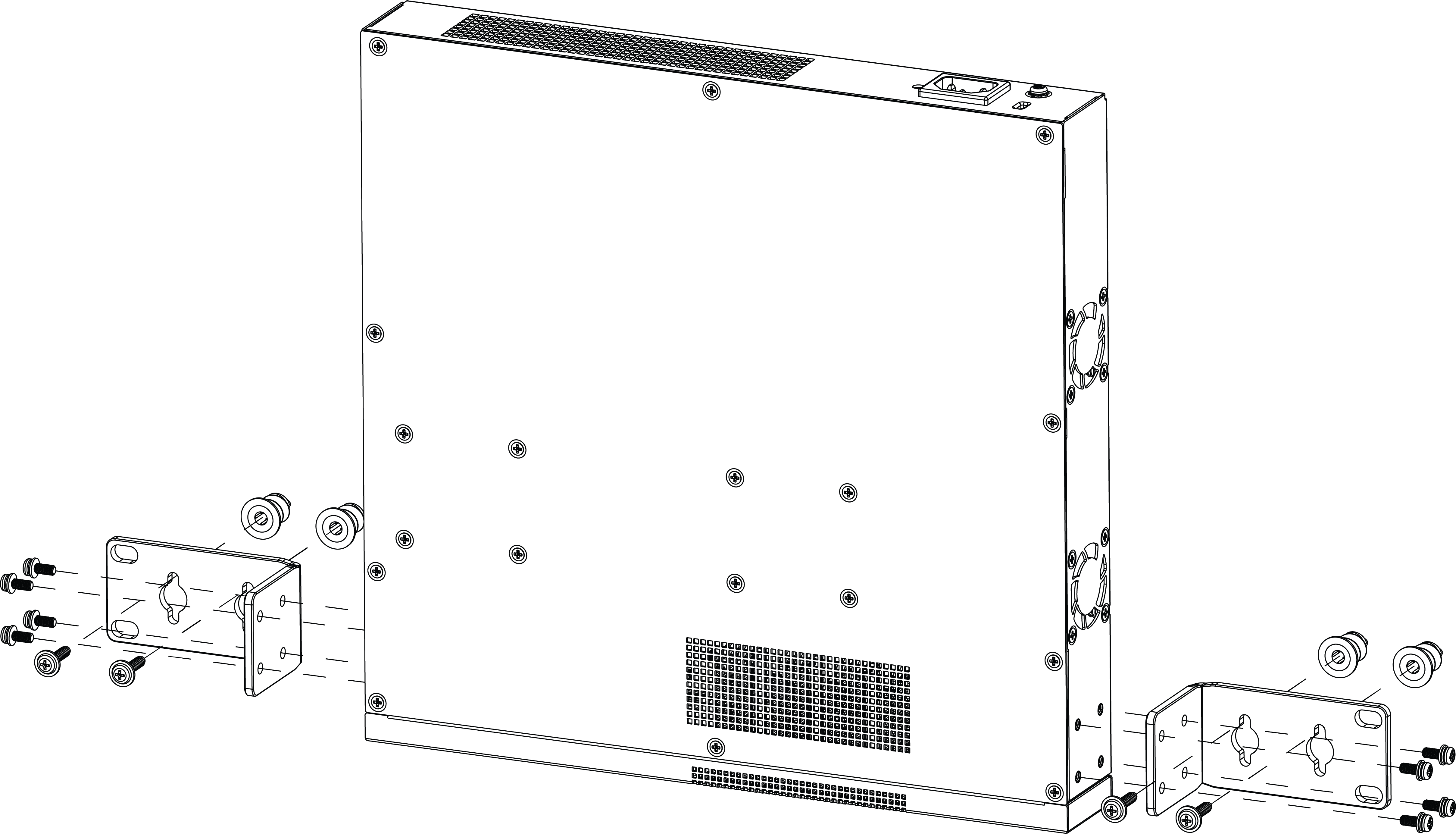
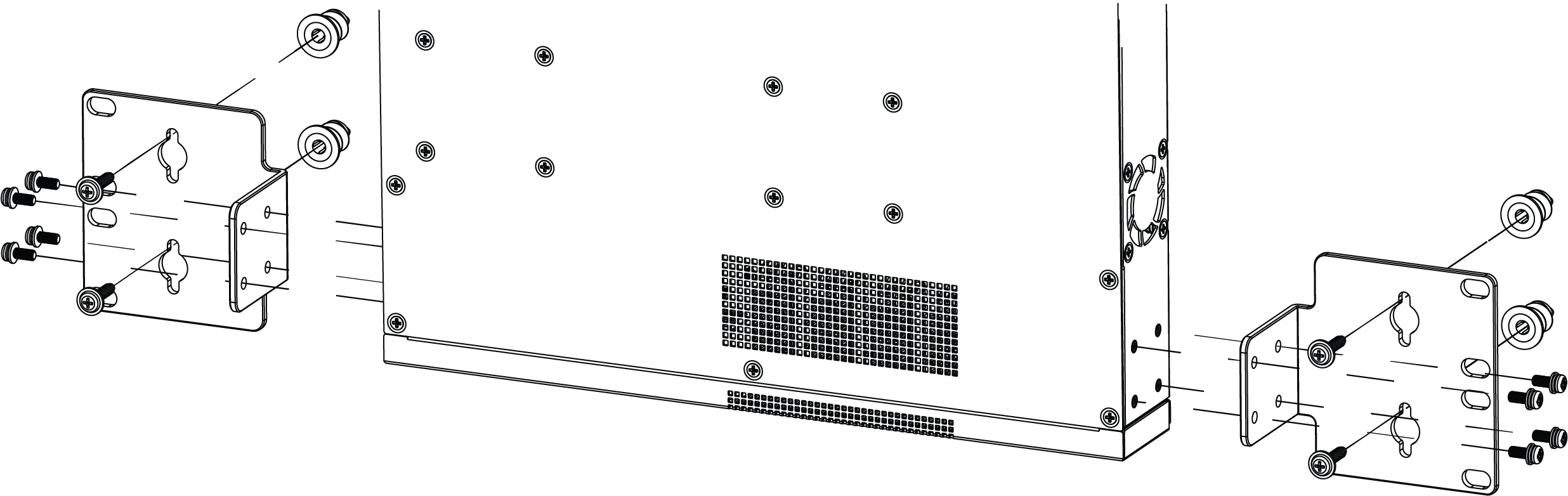
Attach a mounting bracket to each side of the switch, using the screws provided.
Set the flange (ear) flush with the front of the switch, facing the front, for a flush-mount.
Set the flange (ear) toward the back of the switch, facing the rear, for a mid-mount.
The following figures illustrate how to attach the mounting brackets for two common mounting options.
Note
Do not block the air vent on the top of the unit. Leaving a space between units ensures adequate airflow.
Do not overlap rack mounting ears when using the longer mounting ears. Leaving a space between units ensures adequate airflow.
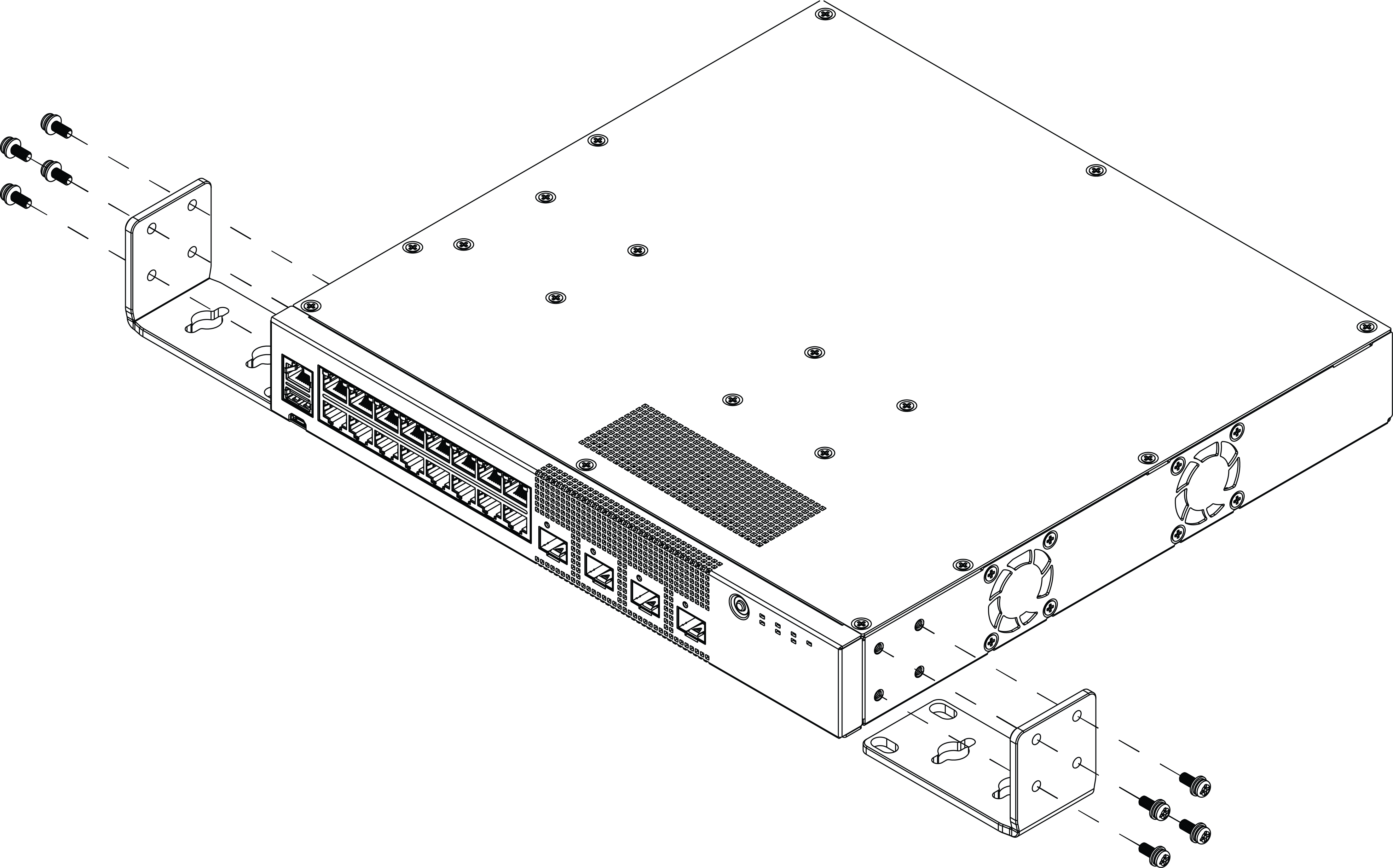
Flush-Mount: Attaching 1U mounting ears to 5320-16P models
Flush-Mount: Attaching larger mounting ears to 5320-16P models
Flush-Mount: Attaching short mounting ears to models 5320-48P/T and 5320-24P/T
Flush-Mount: Attaching mounting ears to 5320-24T-4X-XT and 5320-24T-24S-4XE-XT models
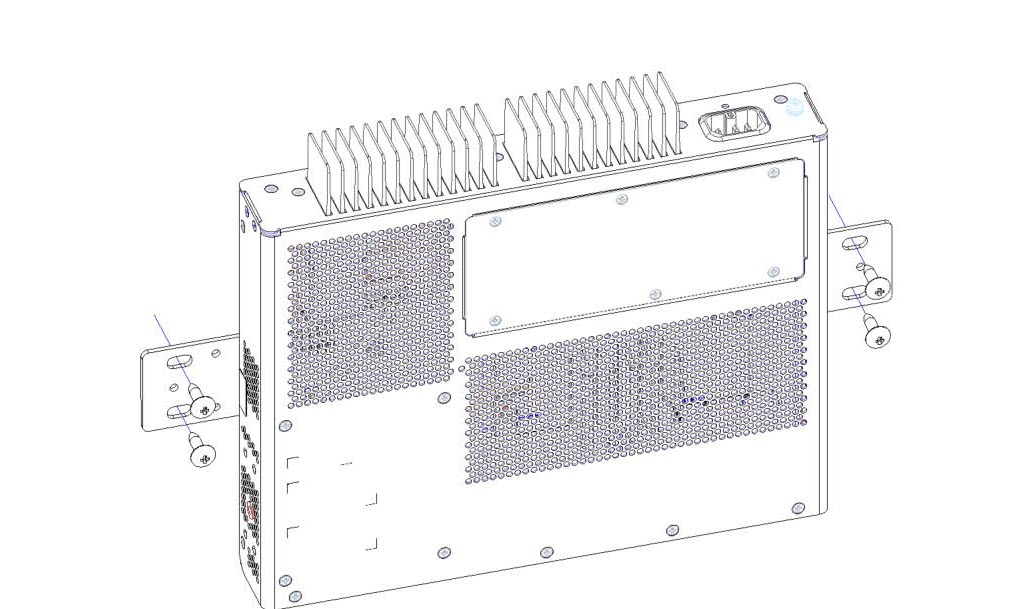
Flush-Mount: Attaching mounting ears to the 5320-16P-2MXT-2X
Note
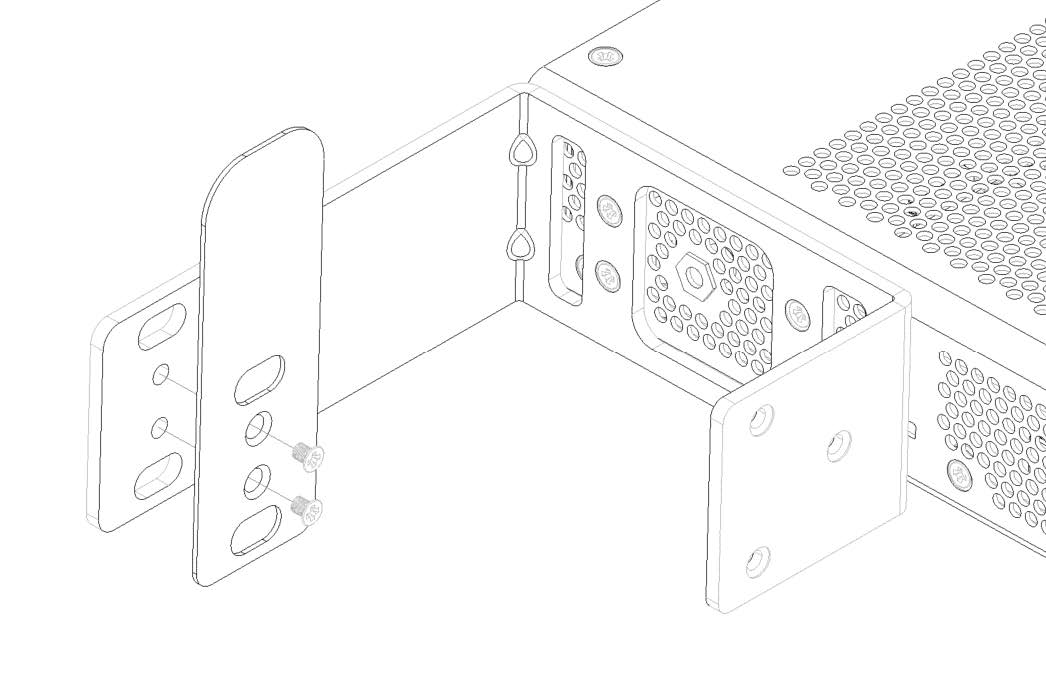
For model 5320-16P-2MXT-2X, you must also attach the 2U blocking extension to the mounting brackets.
Flush-Mount: Attaching the 2U blocking extension to 5320-16P-2MXT-2X
Mid-Mount: Attaching 1U mounting ears to 5320-16P models
Mid-Mount: Attaching larger mounting ears to 5320-16P models
Mid-Mount: Attaching short mounting ears to models 5320-48P/T and 5320-24P/T
Mid-Mount: Attaching mounting ears to 5320-24T-4X-XT and 5320-24T-24S-4XE-XT switches
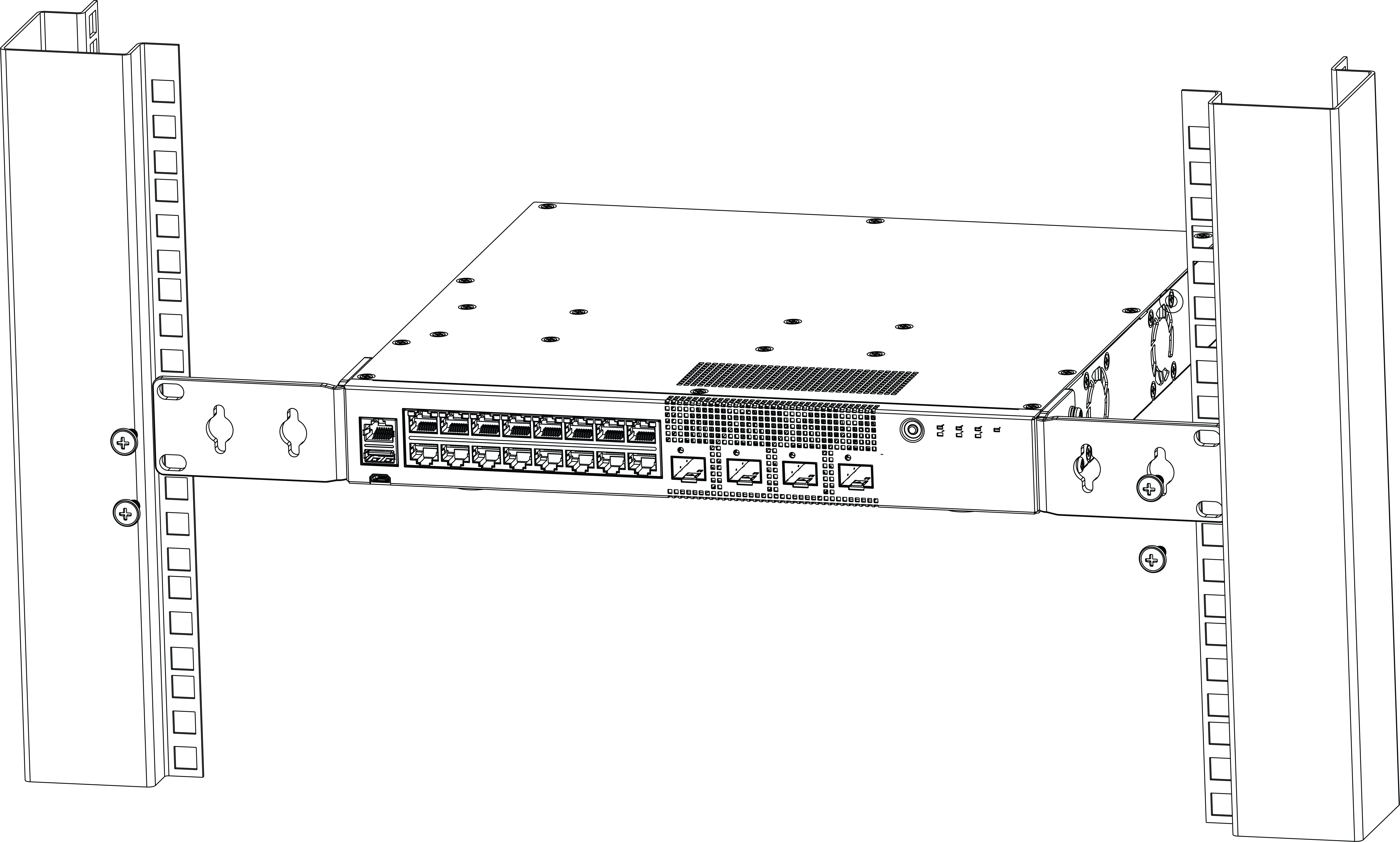
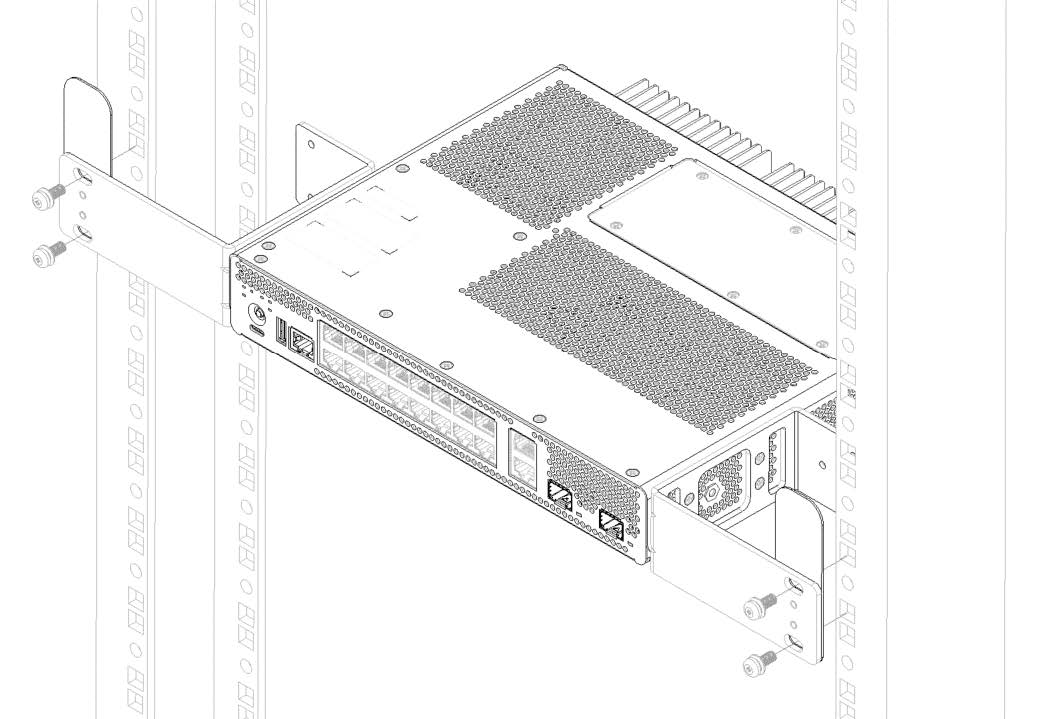
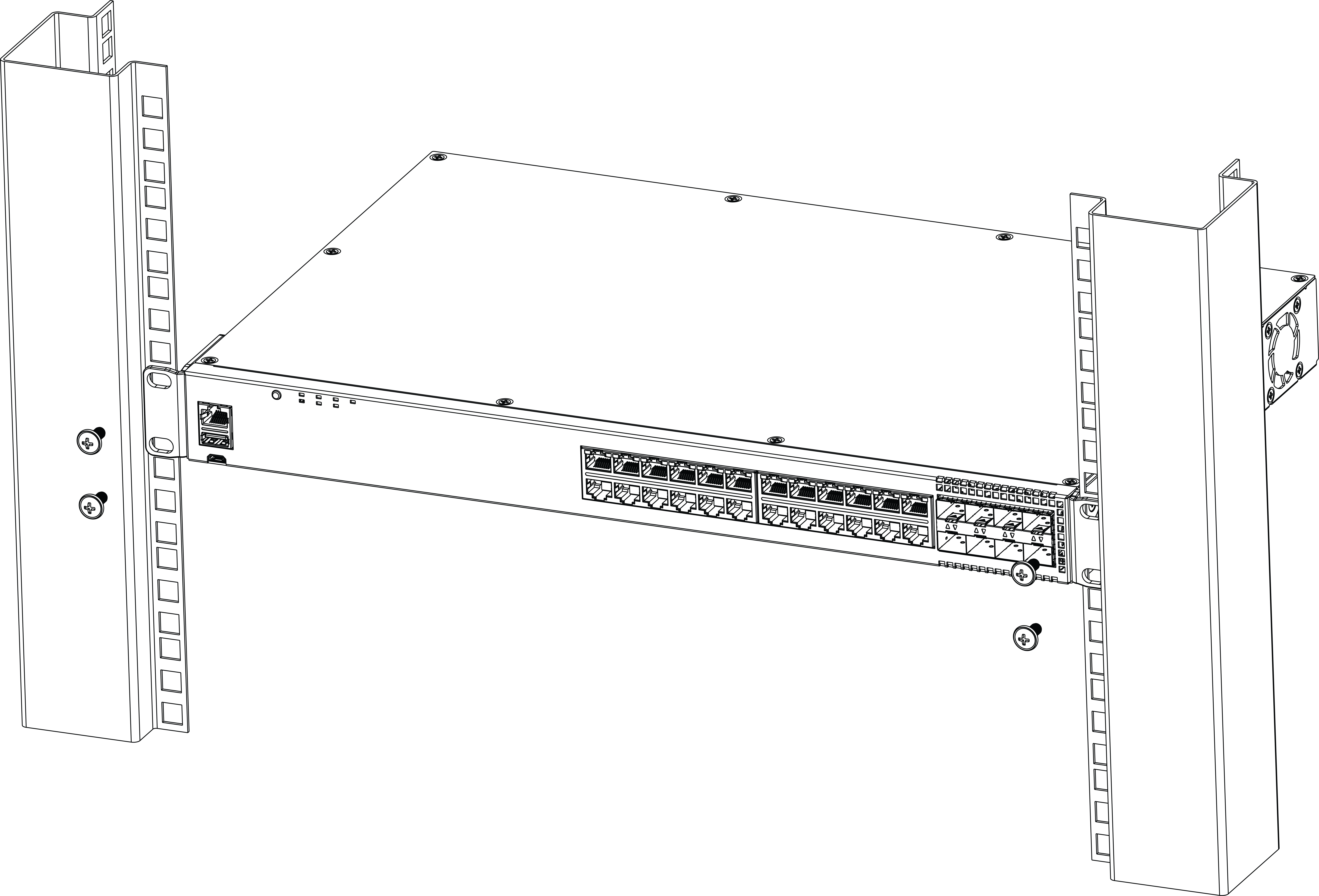
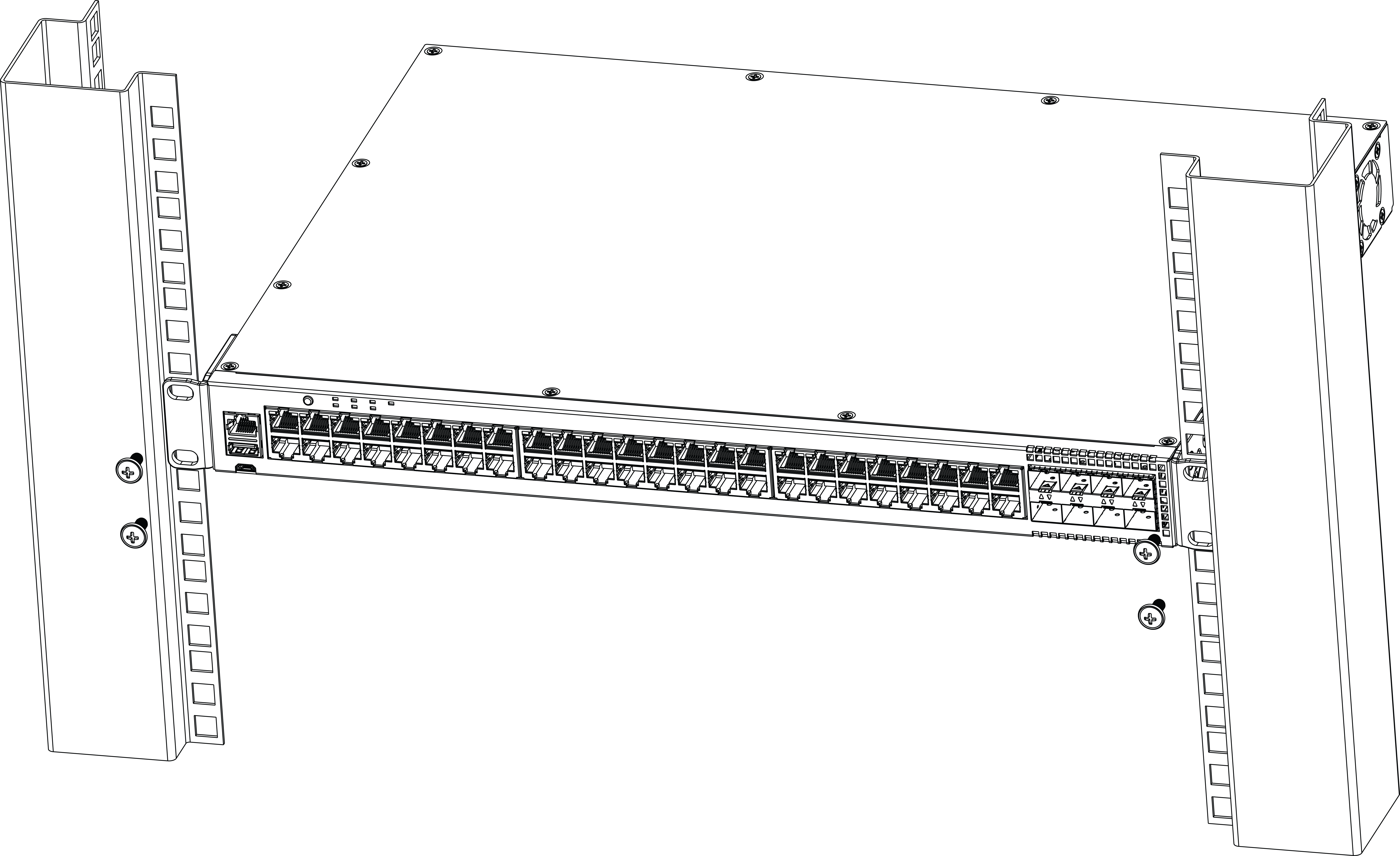
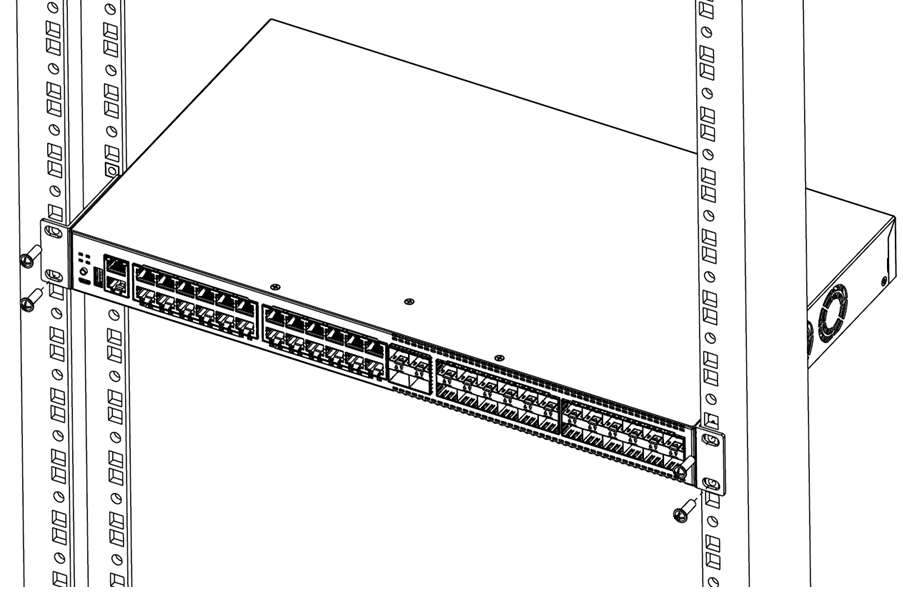
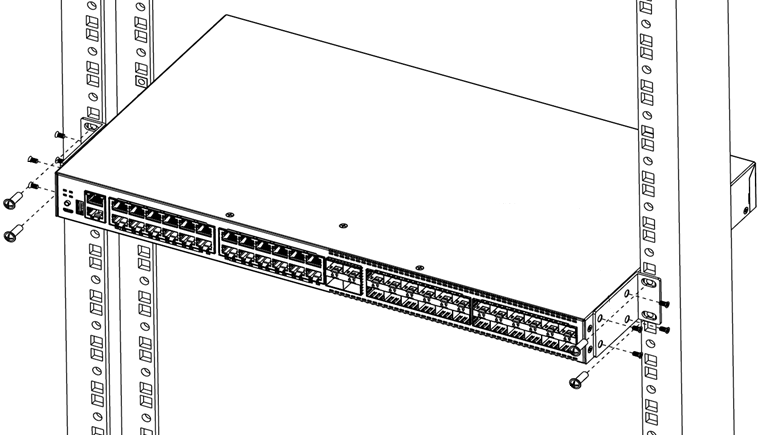
With the mounting brackets attached, position the switch between the vertical rack rails of the 19-inch rack.
Fasten the switch securely to the rack rails using four customer-supplied rack screws. Ensure that the threaded length of the screws is within 4 to 5 cm.
Flush-Mount: Mounting in a Two- or Four-Post Rack for 5320-16P-4XE and 5320-16P-4XE-DC switches
Flush-Mount: Mounting in a Two- or Four-Post Rack for 5320-16P-2MXT-2X
Flush-Mount: Mounting in a Two- or Four-Post Rack for models 5320-24T-8XE and 5320-24P-8XE
Flush-Mount: Mounting in a Two- or Four-Post Rack for models 5320-48T-8XE and 5320-48P-8XE
Flush-Mount: Mounting in a Two- or Four-Post Rack for models 5320-24T-4X-XT and 5320-24T-24S-4XE-XT
Mid-Mount: Mounting in a Two- or Four-Post Rack for models 5320-24T-4X-XT and 5320-24T-24S-4XE-XT
Mount the Device on a Wall
The 5320-16P switch models are constructed so that they can be mounted on a wall. Ensure that the wall is strong enough to support the weight of the switch and the attached cables.
Note
Orientation for wall mounting is limited. The front end of the switch must be facing down, and the power inlet must be facing up when mounting a switch to the wall.
To mount a switch to the wall, follow these steps.
Using the two holes in each short mounting ear, mark the places on the wall to mount the switch. Each mounting ear has two mounting holes, so be sure to make four marks. Be sure to position the marks so that the switch is level when it is mounted.
Drill a hole at each mark.
Insert a provided anchor into each hole. Gently tap each anchor with a hammer, if necessary, to ensure that it is inserted tightly.
Mount the switch on the wall by screwing a provided wood screw through each hole in the wall-mounting ears into the anchors. Ensure that all screws are securely fastened and that the switch is firmly attached to the wall.
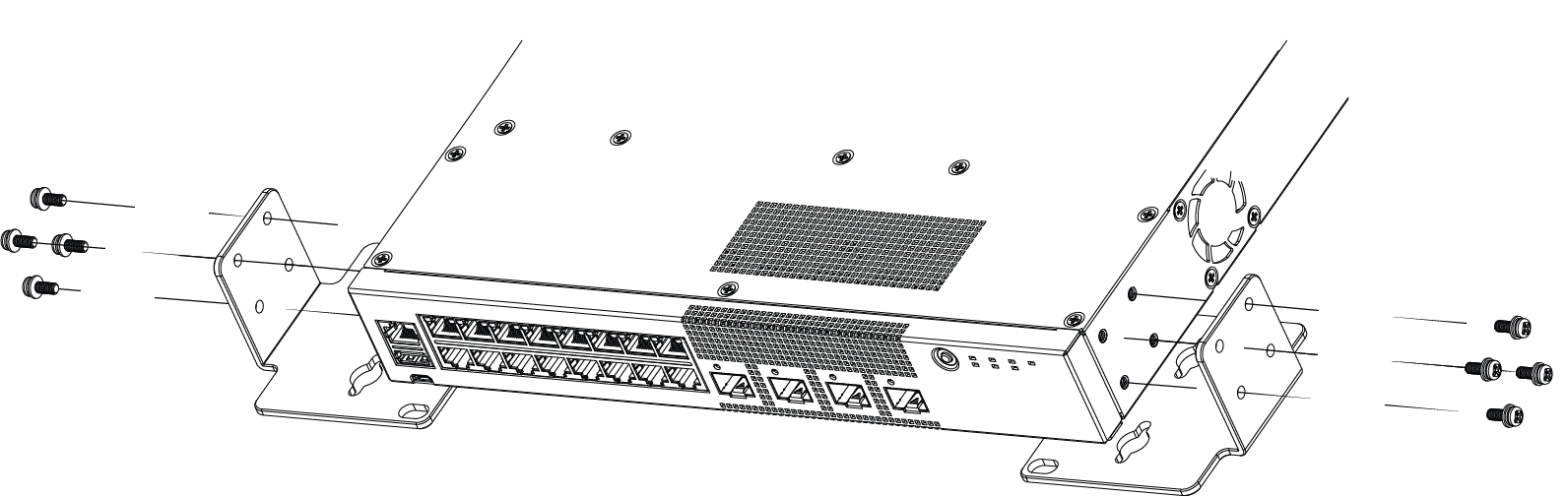
Wall-Mount: Attaching 1U mounting ears to 5320-24T-4X-XT and 5320-24T-24S-4XE-XT
Wall-Mount: Attaching larger mounting ears to 5320-24T-4X-XT and 5320-24T-24S-4XE-XT
Wall-Mount: Attaching mounting ears to 5320-16P-2MXT-2X and the wall
Alternate method of attaching 1U mounting ears for 5320-24T-4X-XT and 5320-24T-24S-4XE-XT
Alternate method of attaching larger mounting ears 5320-24T-4X-XT for and 5320-24T-24S-4XE-XT
Mount the Device Under a Table
The 5320-16P switch models are constructed so that they can be mounted under a table. Ensure that the table is strong enough to support the weight of the switch and the attached cables.
To mount a switch under the table, follow these steps.
Using the two holes in each short mounting ear, mark the places under the table to mount the switch. Each mounting ear has two mounting holes, so be sure to make four marks.
Drill a hole at each mark.
Insert a provided anchor into each hole, if an anchor is needed. Gently tap each anchor with a hammer, if necessary, to ensure that it is inserted tightly.
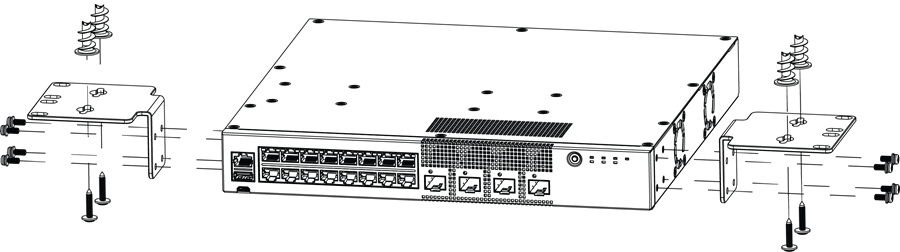
Mount the switch under the table by screwing a provided wood screw through each hole in the mounting ears into the anchors. Ensure that all screws are securely fastened and that the switch is firmly attached to under the table.
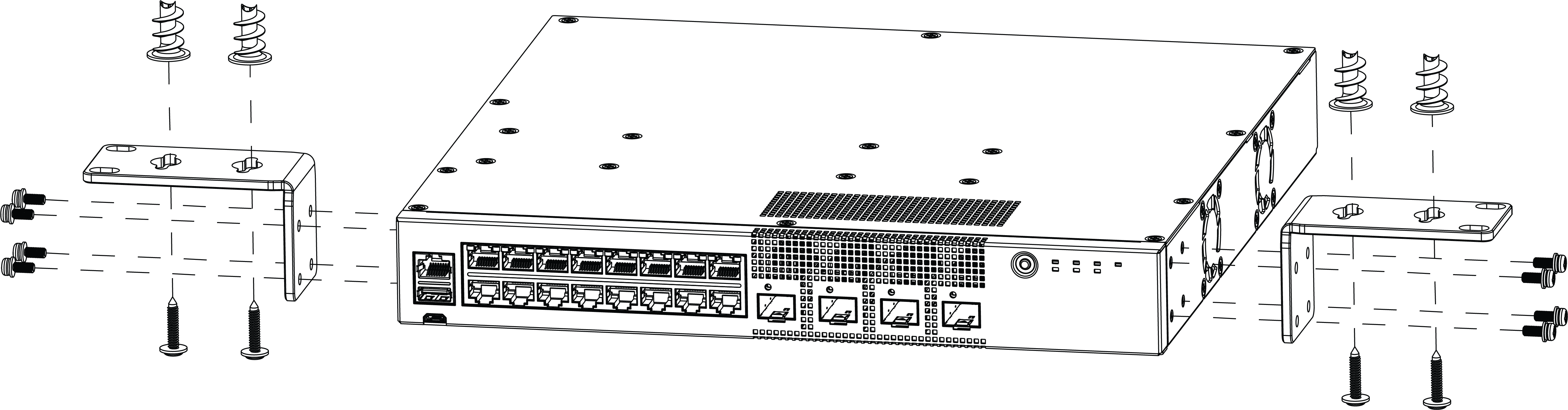
Under the Table Mount: Attaching 1U mounting ears to 5320-16P models
Under the Table Mount: Attaching larger mounting ears to 5320-16P models
Alternate method of attaching 1U mounting ears for 5320-24T-4X-XT and 5320-24T-24S-4XE-XT
Alternate method of attaching larger mounting ears for 5320-24T-4X-XT and 5320-24T-24S-4XE-XT
Mount the 5320-16P-2MXT-2X switch Under a Table
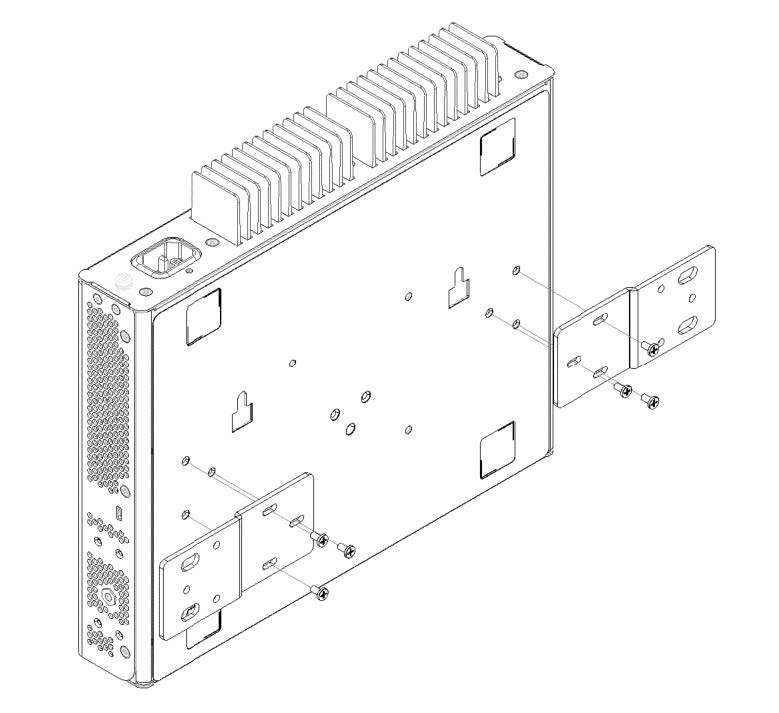
The 5320-16P-2MXT-2X switch uses a 2 piece bracket to guarantee airspace above the switch, and order separately.
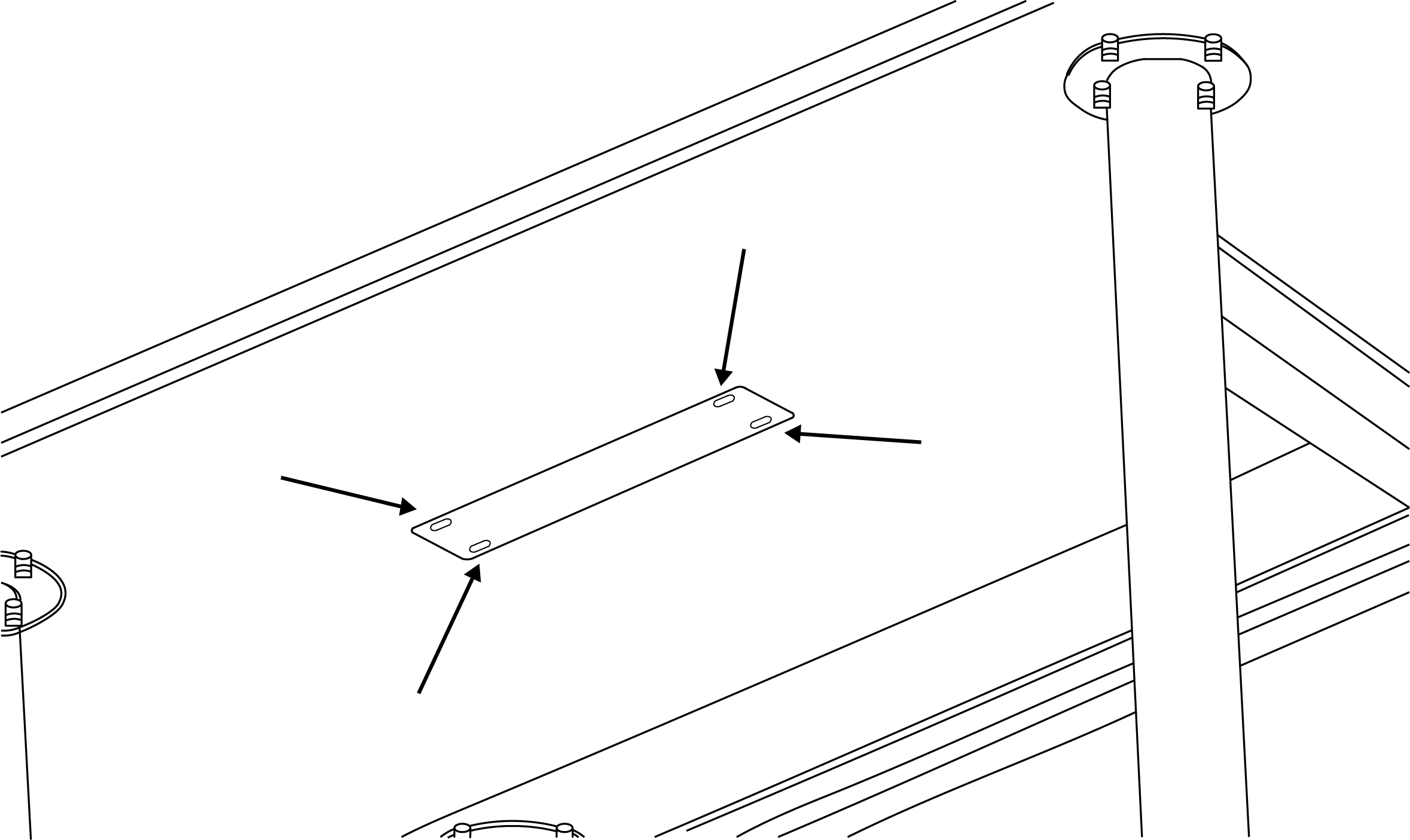
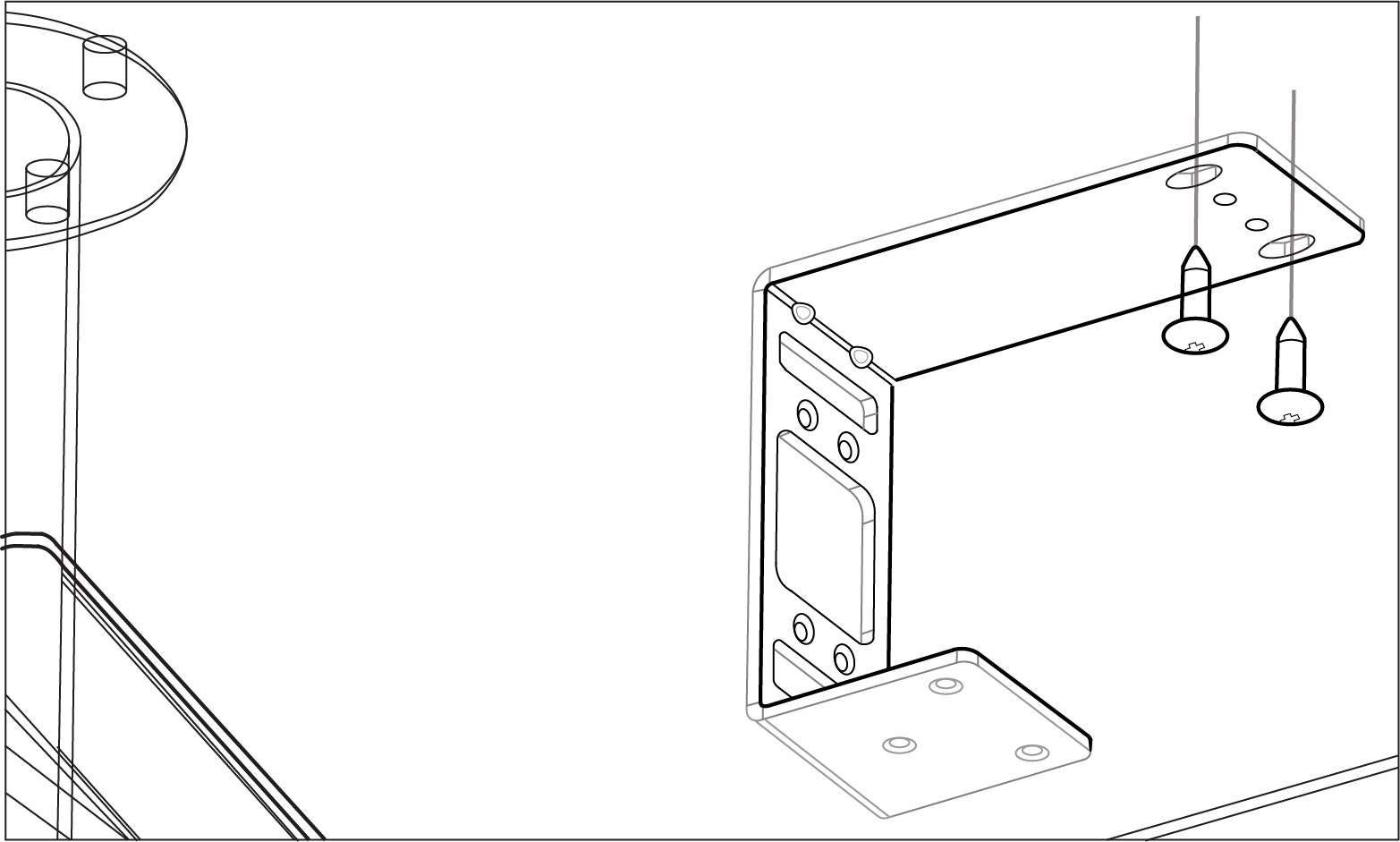
Use the template to mark the holes to be used, then attach the brackets to the underside of the table.
Under the Table Mount: Marking the Location for the Mounting Ears
Under the Table Mount: Attaching the Mounting Ears
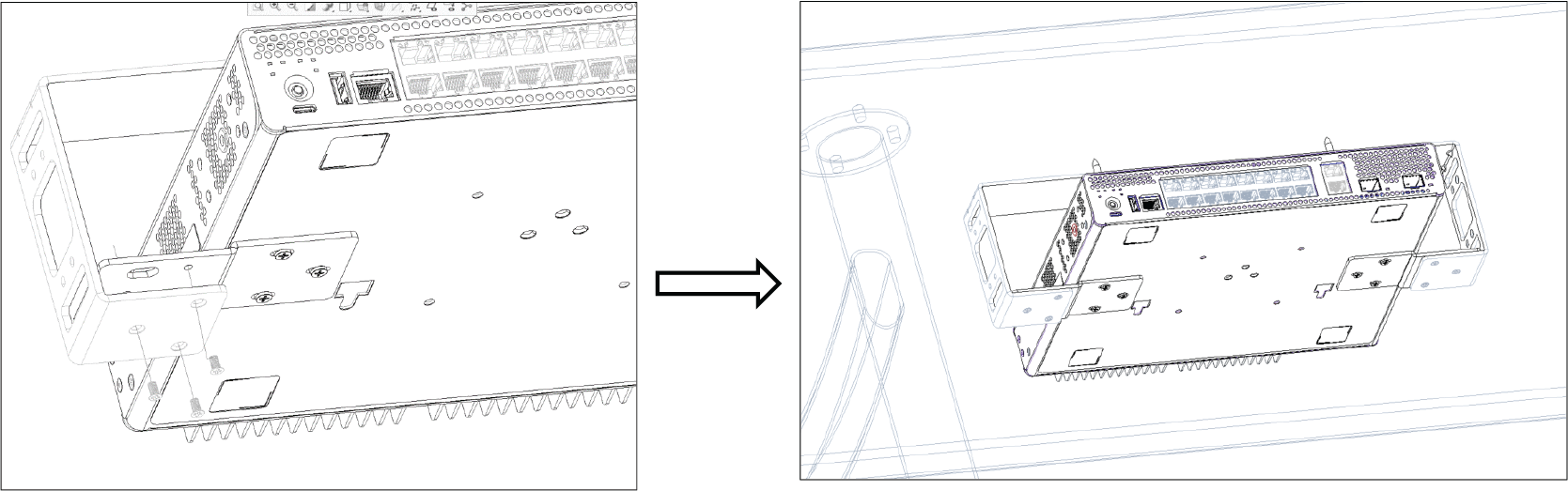
Attach the switch to the mounting brackets.
Under the Table Mount: Attaching the Switch to the Mounting Ears
Mount the 5320-16P-2MXT-2X in a VESA Stand
Note
The orientation is limited for the 5320-16P-2MXT-2X in DIN-rail mounting. The RJ-45 ports must face downward.
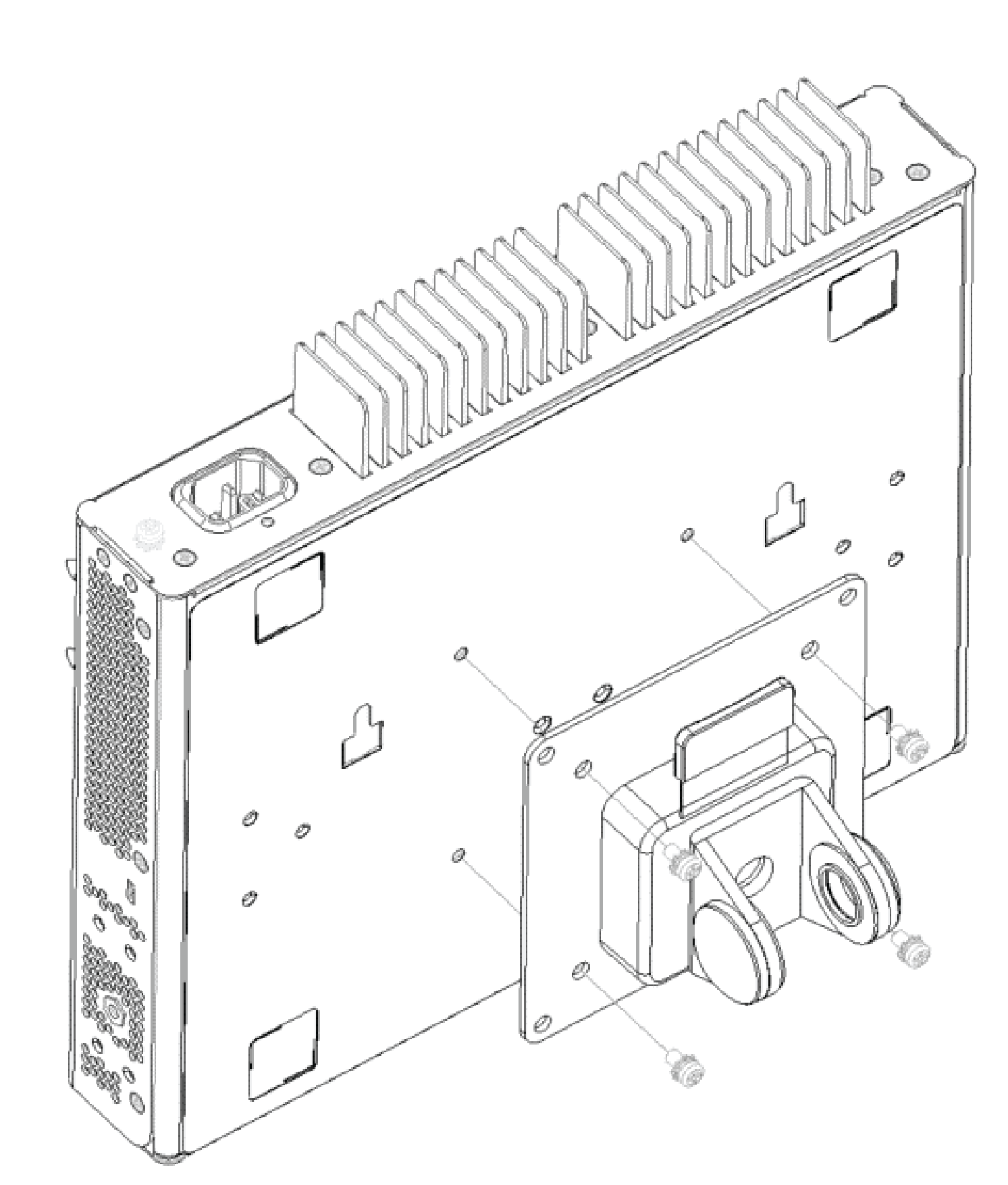
The VESA mount comes with four M4 screws and can be used with the 5320-16P-2MXT-2X. Attach the VESA mounting bracket to the switch using the included screws, then attach the VESA mounted switch to the stand:
VESA Mount: Attaching the VESA Mounting Bracket
Mount the 5320-16P-2MXT-2X on a DIN-rail
Note
The orientation is limited for the 5320-16P-2MXT-2X in DIN-rail mounting. The RJ-45 ports must face downward.
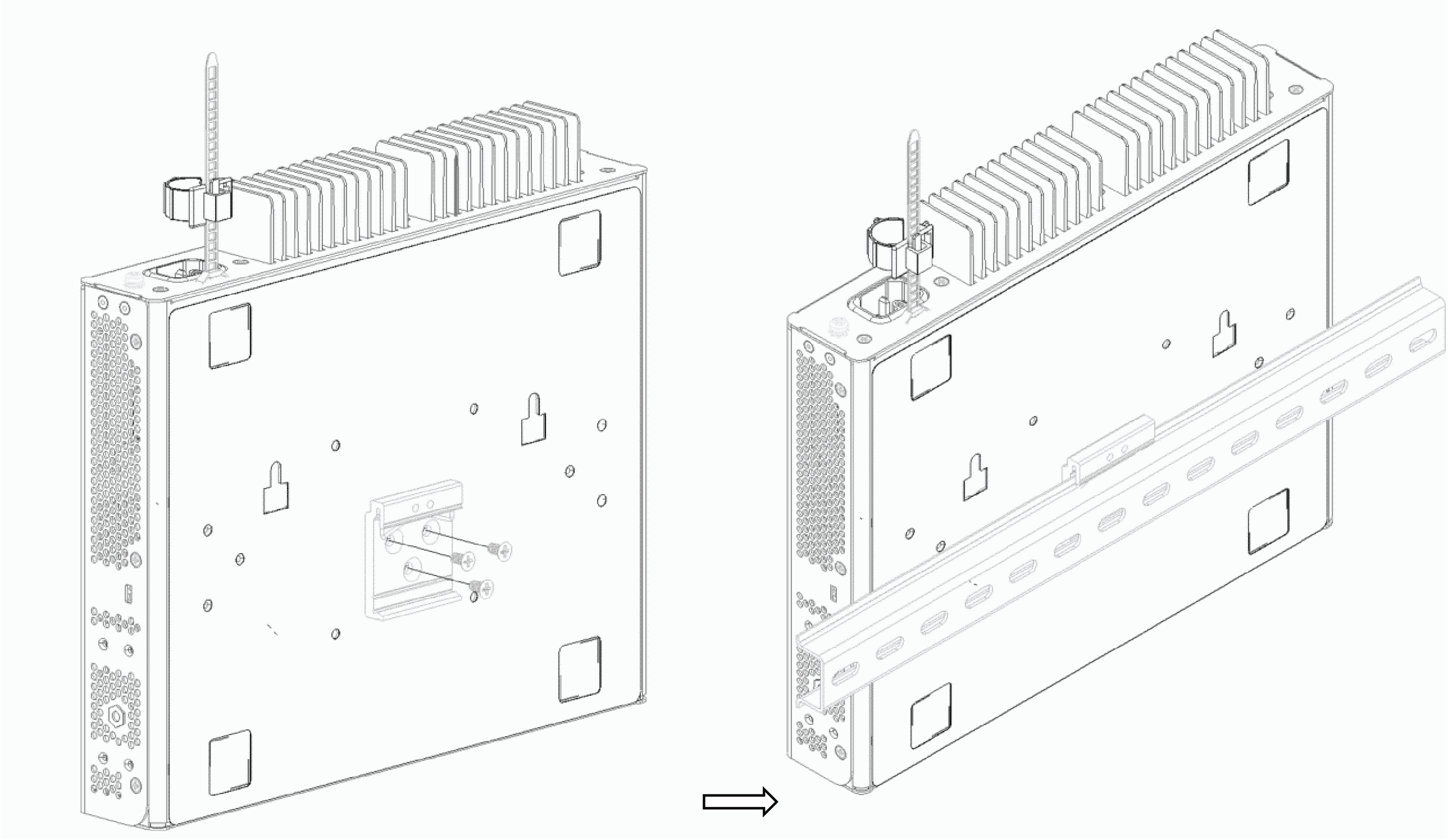
To DIN-rail mount the 5320-16P-2MXT-2X, attach the DIN-rail mounting bracket to the switch, then attach the DIN-rail mounted switch to the DIN-rail:
DIN-Rail Mount: Attaching the DIN-Rail Mounting Bracket