
The Host Attributes section displays the fields in the following table.
| Host Attribute Setting | Description |
|---|---|
| Host Name | The host name of the appliance. Do not edit this setting after initial deployment. |
| Domain Name | The domain name of the appliance. Do not edit this setting after initial deployment. |
| Default Gateway | The Default Gateway IP address is the global default IP route setting for the appliance. Valid values are:
|
| DNS Server 1 | The IP address of the primary DNS server for the appliance. |
| DNS Server 2 | The IP address of the secondary DNS server for the appliance. A secondary DNS server is not mandatory, but provides DNS redundancy. |
Go to .
Under Host Attributes, enter the new settings for the applicable fields.
Select Save.
The L2 Ports section displays the fields the following table. Use the L2 Ports information to understand the OSI Layer 2 (Data Link Layer) physical topology of the data plane. These ports represent the actual Ethernet ports.
| L2 Port Settings | Description |
|---|---|
| Status | The link status. The status may show green (active) or red (inactive). |
| Name | Name of the L2 port. |
| Speed | Connection speed of the L2 port |
| VLANs | Assigned VLANs on the port. |
| Member Ports of LAG | Shows whether LAG is enabled or disabled on the port. You can toggle LAG on or off. |
| Stats | Select the  link to open a
popup that displays more information on the port. Depending on the
type of port, the popup may display: link to open a
popup that displays more information on the port. Depending on the
type of port, the popup may display:
 Port Statistics 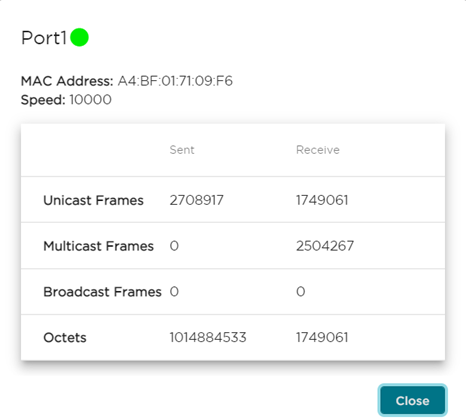 |
To combine two L2 ports into a LAG port, see Configure LAG Ports.
The ICC Interfaces section displays details of the ICC (Inter-Cluster Connection) interface. The ICC interface is a backplane connection between all the members of a cluster and is used for cluster operations, component state, and shared filesystem synchronization. In a multi-node cluster, each node requires an ICC connection.
The following table describes the fields that display for ICC interfaces.
| ICC Interface Setting | Description |
|---|---|
| Name | Name of the interface. |
| IP Address | IP address of the ICC interface. |
| MAC | MAC address of the ICC interface. |
| Certificates | Any certificates that are assigned to the port. |
| LAG | Displays whether LAG is enabled or disabled on the interface, based on whether the LAG toggle is enabled or disabled. |
To combine two ICC ports into an ICC LAG port, see Configure LAG Ports.
The Interfaces section displays details of the currently configured data interfaces. You can use this section to add network topologies. Topologies represent the networks with which the Universal Compute Appliance interacts. The following table describes the fields that display.
| Interface Settings | Description |
|---|---|
| Topology Name | Name of the interface. |
| VLAN ID | VLANS that are assigned to the interface. |
| Tagged | Displays whether the VLAN is tagged (checkmark) or not (no checkmark). |
| Port | The port connection for the interface. |
| IP Address | The IP address of the port. |
| Mode | The mode of the interface. The options are:
|
| Certificates | Displays certificates that are assigned to the port. |
Select Add New Interface if you want to configure a new interface. For details, see Add Interface .
The Static Routes section displays information for currently configured static routes. Use static routes to set the default route of the Universal Compute Appliance so that device traffic can be forwarded to the default gateway. The following table describes the fields that display.
| Interface Settings | Description |
|---|---|
| Destination | IP address of the destination Universal Compute Platform. |
| CIDR | CIDR field is used along with IP address field to find the IP address range. |
| Gateway | Gateway address of the Universal Compute Platform for any Admin or physical interfaces (B@AC L3 VLAN). |
| Interface |
Select Add New Route if you want to configure a new static route. For details, see Add Static Route.