Manage User Accounts

This topic outlines how to manage user accounts on Universal Compute Platform. For information about registering for an ExtremeCloud IQ user account, see Account Registration.

Universal Compute Platform offers the following levels of user access:
  • Full Admin
  • Read Only
Full Administrators can create and manage user accounts. This section outlines the following procedures:
  • Add new accounts
  • Modify account settings
  • Delete user accounts

For information on the settings that you can configure for a user account, see Account Settings.

Add a User Account

Use this procedure to add a new user account.
Note

Note

For field descriptions, see Account Settings.
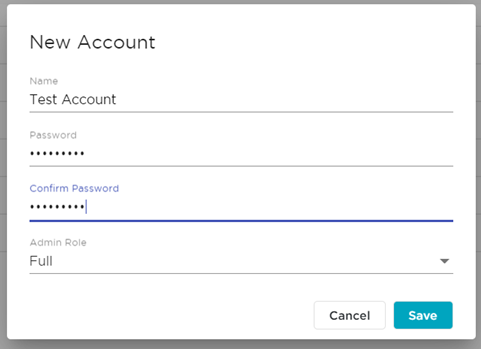
  1. Go to Administration > Accounts.
  2. Select New Account.
  3. Enter a Name for the account.
  4. Enter the password for the new account in the Password and Confirm Password fields.
  5. Select an Admin Role.
  6. Select Save.
    Click to expand in new window
    Create New Account
    New Account details dialog

Edit a User Account

Use this procedure to modify a user account:
Note

Note

For field descriptions, see Account Settings.
  1. Go to Administration > Accounts.
  2. Select next to the account that you want to modify.
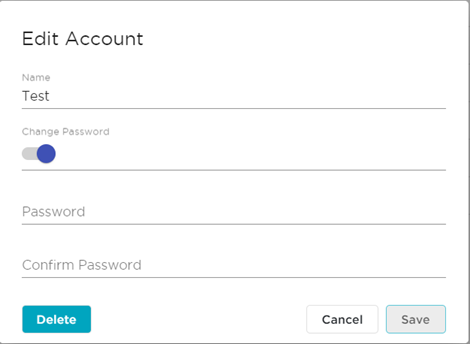
  3. Select Change Password.
  4. Enter the new password in the Password and Confirm Password fields.
  5. In the Admin Role field, select the role.
  6. Select Save.
Click to expand in new window
Edit Account Details Dialog
Change user account password

Delete a User Account

Use this procedure to delete a user account.

  1. Go to Administration > Accounts.
  2. Select next to the account that you want to delete.
    The Account Settings dialog opens.
  3. Select Delete.
    A confirmation dialog displays.
  4. Select OK to confirm that you want to delete the account.