
Run the Basic Configuration Wizard

Run the Basic Configuration Wizard to assign basic network settings such as IP addresses, VLAN IDs, hostnames, DNS, default gateway, and NTP.

The wizard launches automatically when you log in to the appliance for the first time, or after the appliance has been reset to factory-default settings. You can also run the wizard after the initial setup to update network settings.

Note

Note

The wizard prompts you with a series of yes/no, multiple choice, and manual entry questions. The following conventions apply:

  • You must press the Enter key after each entry to input your entry.
  • Displayed settings in [square brackets] represent the default value for that prompt, for example ICC1 IP Address [192.168.10.1] where 192.168.10.1 is the default IP address for the ICC1 port. To apply the default, just press Enter.
  • Displayed settings in (round brackets) represent a list of options from which you must make a selection, for example (y|n)[y] where yes and no are options (and the default is yes). To select no, which is a non-default value, press n and then press Enter.
Note

Note

Settings are configured with the following settings groups. Complete settings for the group and then save those settings before moving on to the next group of settings.
  • Admin Password Configuration
  • ICC Port Settings
  • Data Port Settings
  • Host Attribute Settings
  • Global Default Gateway Settings
  • Time Settings
  1. Log in to the appliance:
    1. Enter the admin credentials to log in to the appliance.
      Note

      Note

      The default admin credentials for the first login are as follows. Note that these values are case-sensitive:
      • Username: admin
      • Password: abc123

      As a best practice, we recommend that you change the password immediately after the first login.

    2. Press Enter to begin the setup.
  2. In the Admin Password Configuration section, do the following:
    1. To change the default admin password (recommended), select y and complete the subsequent steps to change the password. Otherwise, select n and proceed to step 3.
    2. Enter a new password that is between 8–24 characters.
    3. Re-enter the password.
    4. Press Enter to accept the changes.
  3. Configure the ICC Port Settings:
    1. Enter an IP address for the ICC1 port.
    2. Enter a netmask for the ICC1 port.
    3. If you want to assign VRRP to the ICC ports, at the VRRP prompt, select y and then configure the ICC VRRP details. Otherwise, select n.
    4. If you want to assign LAG to the ICC ports, at the LAG prompt, select y and then configure LAG details. Otherwise, select n.
    5. Select y to accept the ICC configuration.
  4. Configure the Data Port Settings:
    1. If you want to edit the data port settings, select y and complete the subsequent steps. Otherwise, select n to accept the default settings and proceed to step 5.
    2. Select the port that you want to assign as the main data port.
    3. Enter the data port IP address.
    4. Enter the data port netmask.
    5. Enter the VLAN ID for the data port.
    6. To enable tagged frames for the data interface VLAN, select y. Otherwise, select n to use untagged frames.
    7. To enable management on the data interface, select y. Otherwise, select n.
    8. Select y to accept all data port settings.
  5. Configure the Host Attribute Settings:
    1. Enter the hostname for the appliance in lower case letters.
    2. Enter the domain name for the appliance.
    3. Enter the IP address of the primary DNS server.
    4. If you want a secondary DNS server, select y and enter the IP address of the secondary DNS server. Otherwise, select n.
    5. Select y to accept all host attribute settings.
  6. Configure the Global Default Gateway Settings:
    1. Enter the IP address of the default gateway. The address must point to a next hop connection through one of the service ports.
    2. Select y to accept the default gateway settings.
  7. Configure the Time Settings:
    1. To update the time zone of the appliance, select y and complete the following Region substeps to configure the time zone. Otherwise, select n and go to 7b.
      1. For Region, select the number for the desired continental region.
      2. For Region, select the number for the desired city region.
      The configured time zone displays, for example America/New_York.
    2. Enter the IP address or fully qualified domain name (FQDN) of the primary NTP server.
    3. If you want to add a second NTP server, select y and enter the IP address or FQDN of the secondary NTP. Otherwise, select n.
    4. Select y to accept the updated time settings.
      Note

      Note

      Make sure that the NTP settings are correct before you accept settings. Several system functions depend on an accurate timestamp.
      The Controller Post Installation Configuration screen displays with a set of options that match the settings groups in the wizard.
      Table 1. Controller Post Installation Configuration
      Menu Option Command
      Admin Password Configuration 1
      Change ICC Port Settings 2
      Change Data Port Settings 3
      Change Host Attribute Settings 4
      Change Global Default Gateway 5
      Change Time Settings 6
      Apply Settings and Exit A
      Exit Without Applying E
  8. To apply settings and exit, select A.
Note

Note

  • If you want to reconfigure any of the previous settings groups or exit without applying the configuration changes, enter the corresponding numbers or characters, as displayed on the Controller Post Installation Configuration screen (see Controller Post Installation Configuration ).
  • If you reconfigure any screen, you must also reconfigure all subsequent settings. For example, if you reconfigure the Admin Password, you will have to reconfigure all the subsequent configuration wizard settings.

What to do Next

After you run the configuration wizard, use the ping command to test connectivity to external services.

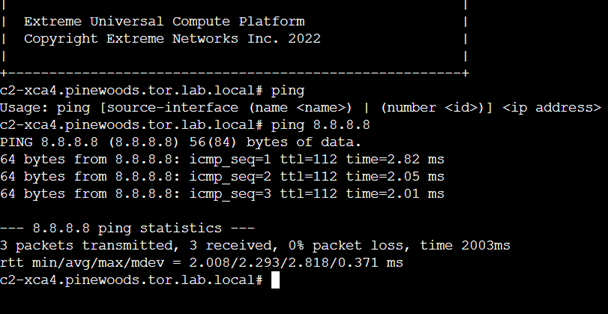
  1. To test connectivity to external services, ping the IP address of the external server. For example, to test connectivity to DNS, ping the DNS server.
  2. Ping the cluster IP address to test connectivity.
Click to expand in new window
Example ping command