User Access

Business Insights uses user types and permissions to determine what users can access:

User Types

Each user must be assigned a user type. The user type determines the event access (which events a user can access) and scope of data (the data that is available for those events). The following user types are available for selection:

For a detailed summary of the level of event access and data scope that each user type provides, see User Types in Business Insights.

Table 1. User Types in Business Insights
User TypeDescription of User Access

User for a Customer (All venues)

On the User Management page, users with this user type get listed in the Customer column. The following access applies:

  • Event Access—Has access to all events that are associated to that customer, irrespective of which venue hosts the event and which team is playing. For a league, this user has access to all events at league venues including non-league events (for example, concerts).
  • Data Scope:—Has access to data for all venues and teams under that customer. For example, this user can use comparative charts to compare results for all teams in the league. With the required permissions, this user can see:
    • Within User Management, can see all users under the customer.

    • Within Locations, can see location mappings for all venues under the customer.

    • Locations data within charts and dashboards for all venues.

User for a Customer (Specific venue)

On the User Management page, users with this user type get listed in the Venue column. The following access applies:

  • Event Access—Has access to all customer events that are associated to that venue including both league events and non-league events such as concerts. If the venue houses two teams, this user can access events for both teams. The user does not have access to events that take place at other league venues, including events where the venue's home team is visiting another team's stadium.
  • Data Scope:—Has access to data from a specific venue only. This user cannot see data from other venues, unless the data is part of a customer-published figure (for example, league averages). If this user has the required permissions, they can see:
    • Within User Management, this user can see only users for that venue or users for that venue's team.
    • Within Locations, can see locations mappings for their own venue only.
    • Locations data within charts and dashboards for all events at the venue.

User for a Customer (Specific venue and team)

On the User Management page, users with this user type get listed in the Team column. The following access applies:

  • Event Access—Has access to all customer events for a specific team that take place at a specific venue. For a league, this user can access events only for the specified team that take place at the specified venue. The user cannot access:
    • Events for other teams that play at the same stadium.
    • Events where the specified team is visiting another team's stadium.
    • Non-league events such as concerts.
  • Data Scope—Has access to data that pertains to that team and venue only. This user cannot access data for other events at the venue (for example, if the venue houses two teams, the user can access data for their team only). With the required permissions, this user can see:
    • Within User Management, the user can see other users for that team only. This user cannot see users at the venue level, customer level, or users for other teams under the customer.
    • Within Locations, this user cannot see Locations mappings for their venue. However, they can see locations info for the venue within charts for team events.

For an illustration of how data scope works for different user levels, see Event Data Scope for Different User Levels. Each block in the image represents the data that is available for users and administrators at that level. A Customer user (all venues) can access data for any venue under the customer, whereas a Customer user (specific team and venue) can access data only for a specific team at a specific venue.

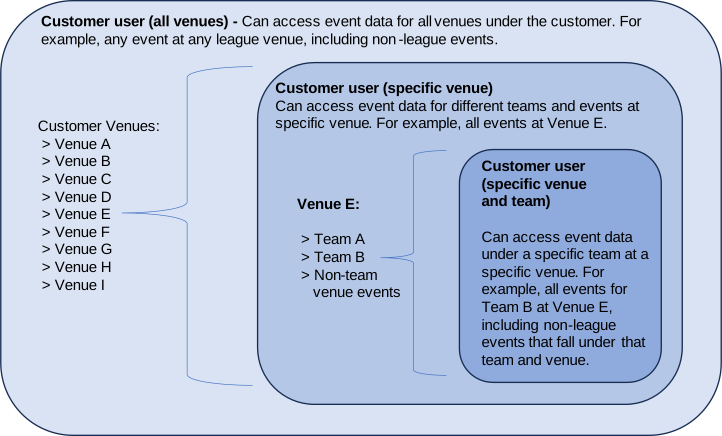
Click to expand in new window
Event Data Scope for Different User Levels

Permissions

Permissions determine which pages, menu items, and actions that a user can access. To increase a user's access, you can add additional permissions to a user's default access by assigning the permissions that are outlined in Permissions in Business Insights. You can assign multiple permissions to a single user.

Table 2. Permissions in Business Insights
PermissionDescription
NoneA default user with no permissions can access the following pages:
  • Dashboards
  • Schedule—Has page access, but cannot create custom events.
AdministratorProvides user access to the following menu items in the Business Insights navigation menu:
  • Location Mappings
  • User Management—Has page access, but cannot add, delete, or edit user accounts. Also, cannot change a password for another user.
  • Custom Events—Has access to create and manage custom events, either from the Custom Events page or from the Schedule page.
  • Custom Markers
  • Pre Flight Checks
  • Tracked Applications
  • Data Studio
  • Preferences
Add UserProvides access on the User Management page to add a user account to Business Insights.
Delete UserProvides access on the User Management page to delete a user account from Business Insights.
Update UserProvides access on the User Management page to update a user account in Business Insights.
Change PasswordProvides access on the User Management page to change a password for another user.
LicenseProvides access to the License page in Business Insights. This user can assign license capacity for all venues and teams to which their user type provides access.
Note

Note

When managing user accounts, administrators cannot exceed the data scope that their user type provides. For example, an administrator with a Customer user (Specific venue) user type cannot manage users who fall under a different venue than the administrator. However, that administrator can manage users with the user type Customer user (Specific venue and team) where that user falls under the same venue as the administrator. For more detail on user types, see User Types in Business Insights.