The following hardware is required to install an indoor access point on a junction
box (box):
An indoor access point
ACC-BKT-AX-JB accessory
About this task
Install the access point to a junction box if you want to power the AP using an electrical connection.
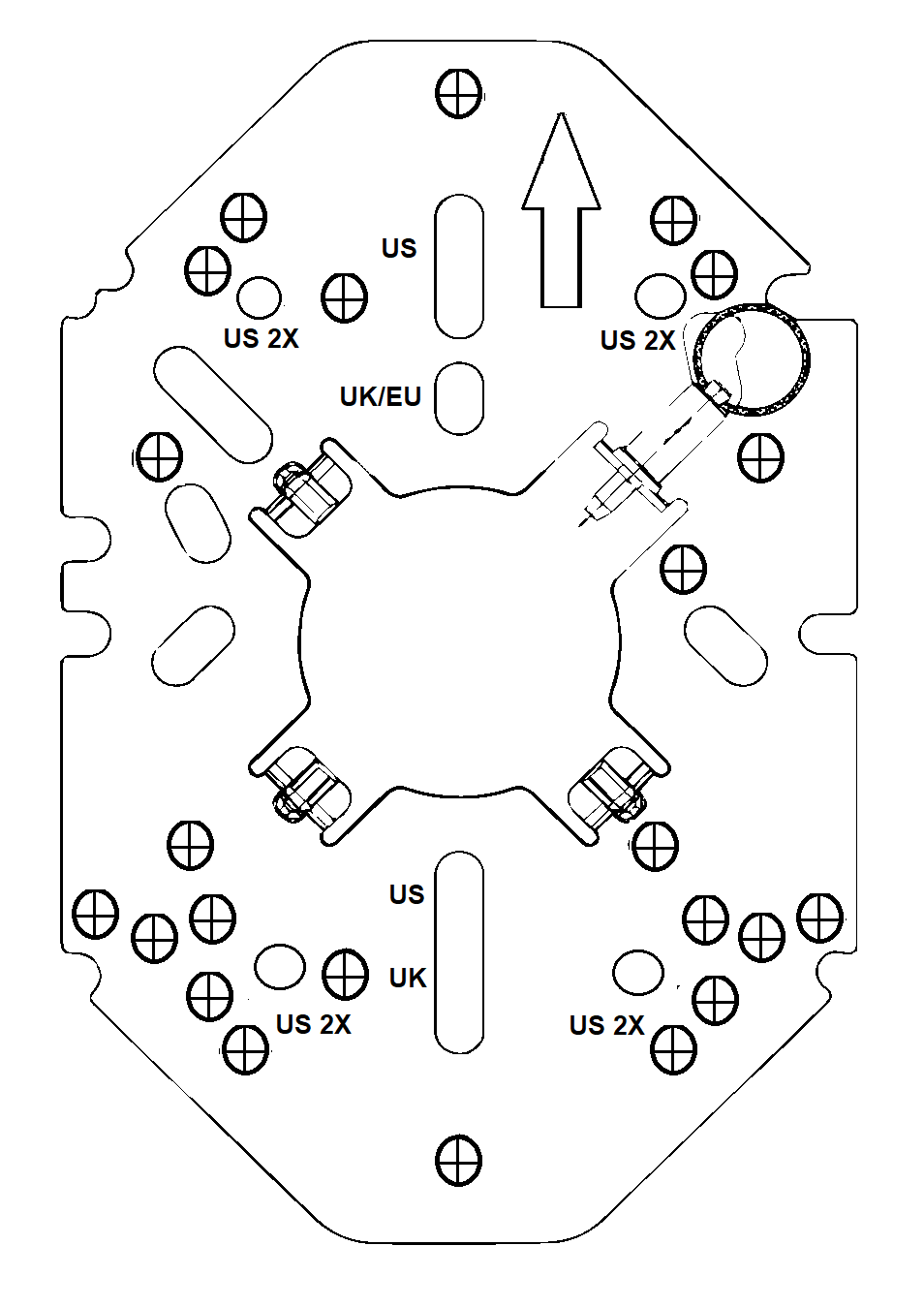
The ACC-BKT-AX-JB accessory bracket is used when you need to install the access point on an indoor junction box. The ACC-BKT-AX-JB access has two parts:
ACC-BKT-AX-JB
Accessory Bracket Metal Part
Procedure
Remove the screws holding the
junction box cover plate.
Remove the LAN cable from the
cover plate.
Bring the LAN cable through the
center hole of the metal bracket part.
The LAN wire must be in-between
the metal part and the plastic part during installation.
Place the ACC-BKT-AX-JB
accessory metal part, with the bracket holes against the cover plate of the
box.
Using the screws removed from
the cover plate, find the bracket holes that align with the junction box screw
holes.
Important
The text
for the holes must be normally readable.
Using the cover plate screws, attach the metal bracket part to the junction
box.
Place the plastic part on the
metal part, rotate it ¼th to 1/3rd turn clockwise until you hear it click in
place as the lock is set.
Important
When
installed correctly on a wall, the side arrows on the plastic part must be
pointing up.
Note
There is a metal pull ring
in the metal part that is used to unlock and remove the plastic part.
To
unlock the plastic part, pull out the pin's ring and turn the plastic
part 1/3rd
turn counter-clockwise and lift it apart.
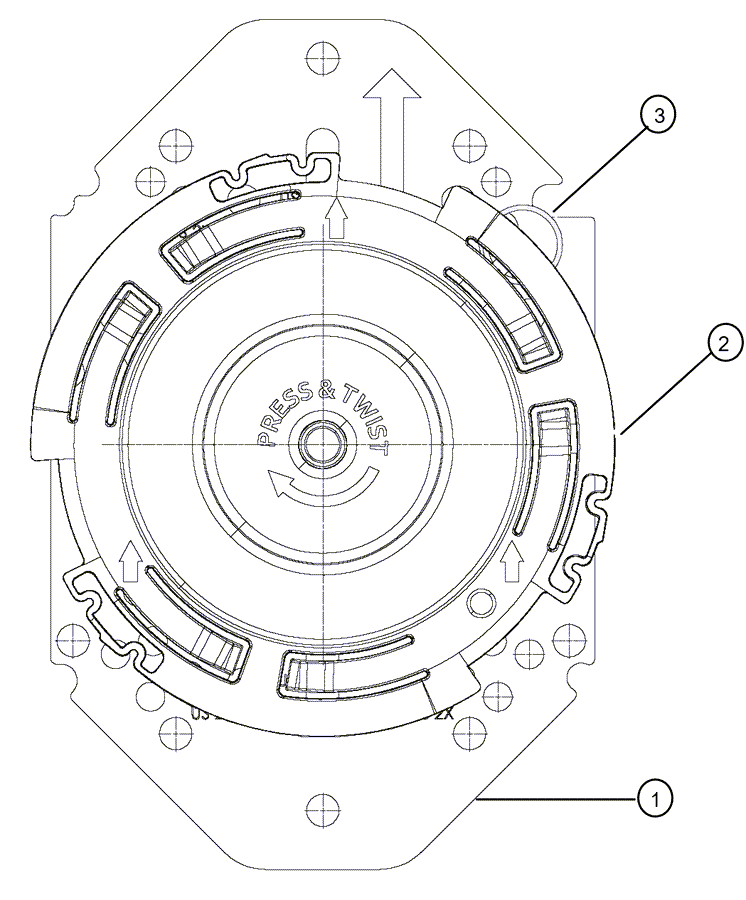
Junction Box Accessory
Bracket Assembly
Callout
Description
1
Sheet-metal junction box hole metal part
2
Plastic twist plate part
3
Pull ring with 10 mm diameter ring for unlocking the
plastic part
Align the red dot on the back of the access point against the red dot on the
plastic part.
Push the access point onto the plastic part and turn it clockwise until you
hear it lock in place.
Insert the RJ45 cable connector to the Ethernet connector on the access
point.