Use this procedure to install a single instance of the Tunnel Concentrator application on the Universal Compute Platform host appliance.
Log in to the Universal Compute Platform.
Go to Engines > Installation.
From the Extreme Tunnel Concentrator pane, select Install.
Tunnel Concentrator Installation Pane
In the popup window, select OK.
The engine installs. After the engine installs, a new Tunnel Concentrator instance displays in the Extreme Tunnel Concentrator pane.
Select the link for the new instance.
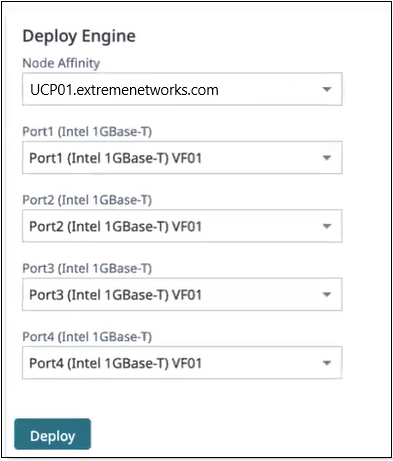
On the Deploy Engine page, configure the following settings:
Node Affinity—Select the Universal Compute Platform node on which this Tunnel Concentrator instance will run.
Ports (1, 2, 3 and 4)—By default, each port gets assigned the lowest unassigned VF on the internal virtual switch. We recommend that you retain the defaults, although you can assign any unassigned VF.
Note
The Tunnel Concentrator instance is locked to the VF number. By default, the first application instance on a host uses VF01 for all ports, the second application uses VF02, and the third uses VF03. We recommend that you retain the default VF assignments.
Deploy the Tunnel Concentrator Engine
Select Deploy.
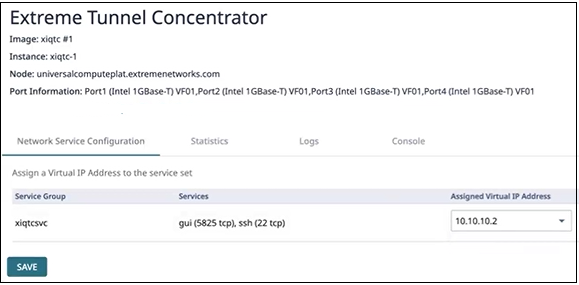
The application deploys. After a delay of up to a few minutes, the Extreme Tunnel Concentrator screen appears, displaying the following four tabs:
Network Service Configuration
Statistics
Logs
Console
Select the Network Service Configuration tab.
For Assigned Virtual IP Address, select a virtual IP address for the Tunnel Concentrator service.
Note
The Assigned Virtual IP Address field uses the VRRP virtual IP address that you assigned to the data port on Universal Compute Platform. This address provides Tunnel Concentrator with a login URL for the GUI.
Network Service Configuration
Select Save.
After a delay of up to a few minutes, the Instance web interface link gets added to the Extreme Tunnel Concentrator screen. For example, https://10.10.10.2:5825.
Select the Instance web interface link.
The Tunnel Concentrator GUI login page displays.
Log in using the default admin credentials:
username: admin
password: abc123
What to do Next
As a best practice, change the default admin password immediately after you login for the first time.