
This example provides sample settings for an installation of a single instance of Tunnel Concentrator on ExtremeCloud Edge.
The first three sets of settings are configured on Universal Compute Platform during ExtremeCloud Edge - Self-Orchestration configuration that prepares the host for Tunnel Concentrator. The remaining settings are part of the Tunnel Concentrator installation and engine deployment.

Note
This example provides sample settings, but does not provide detailed procedures. For detailed step-by-step procedures, see Installation Task Flow.
When you login to Universal Compute Platform for the first time, the Basic Configuration Wizard starts. Assign the following settings:
ICC1 Port IP Address=192.168.100.14
ICC1 Port Netmask =255.255.255.0
ICC1 Port VRRP IP Address=
ICC1 Port VRRP Priority=100
ICC1 Port VRRP Router ID=1
Enable Lag on ICC1 Port=n
Data Port=Port 1
IP address=10.10.10.1
Netmask=255.255.255.0
VLAN ID=1
Tagged frames=n
Management on this interface=y
Host Name=UCP01
Domain Name=extremenetworks.com
Primary DNS server=8.8.8.8
Default Gateway=192.168.100.1
Timezone=America/Detroit
NTP server 1=time.nist.gov
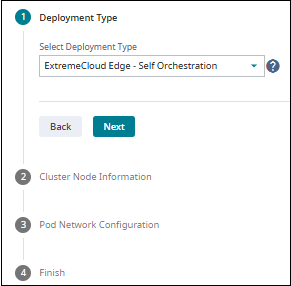
On the Universal Compute Platform GUI, go to and create the standalone cluster with the following settings:
Deployment Type=ExtremeCloud Edge - Self-Orchestration
Cluster Node Information=Standalone
ICC IP Address=192.168.100.14
Pod Network IP Address=10.96.0.0
Pod Network CIDR=16
Service Network IP Address=10.97.0.0
Service Network CIDR=16

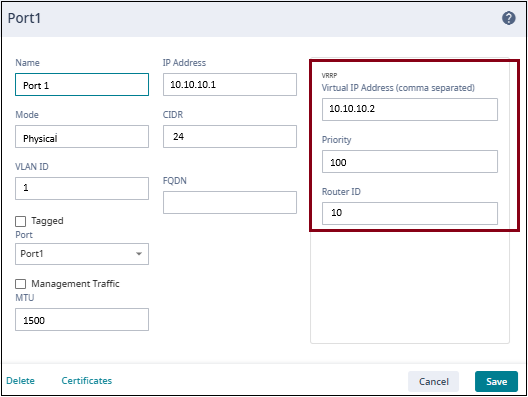
After the cluster is created, go to and configure VRRP on the data port that you configured using the wizard. Add the following VRRP settings to the existing port configuration:
Virtual IP Address=10.10.10.2
Priority=100
Router ID=10
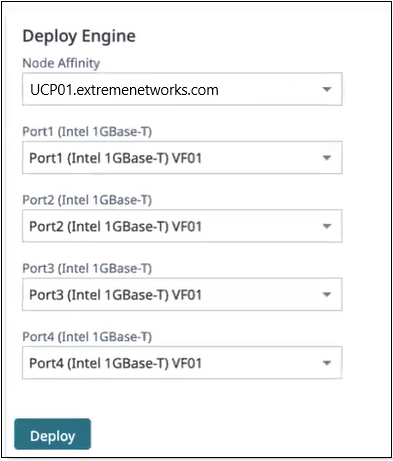
On Universal Compute Platform, go to and Install the Tunnel Concentrator application.
Node Affinity=UCP01.extremenetworks.com
Port1=Port1(Intel GBase-T) VF01
Port2=Port2(Intel GBase-T) VF01
Port3=Port3(Intel GBase-T) VF01
Select the Network Service Configuration tab and assign the VRRP address that you assigned in the port configuration to Tunnel Concentrator using the following setting:
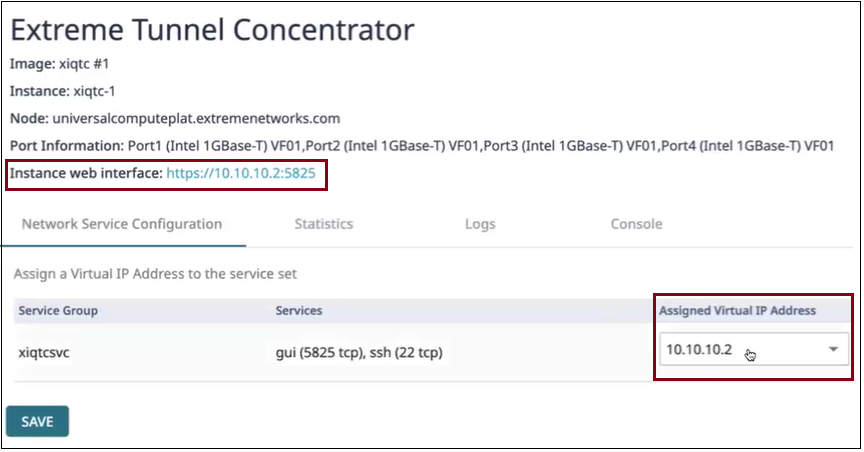
Select the Instance web interface link (https://10.10.10.2:5825) to launch the Tunnel Concentrator GUI at the login screen.