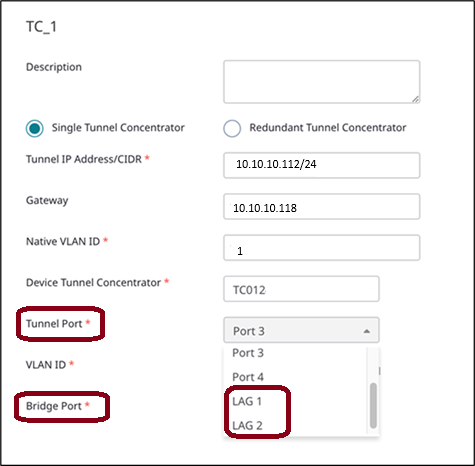
Tunnel Concentrator supports Link Aggregation (LAG) for the data ports. LAG interfaces increase link throughput and provide redundancy in case of a link failure.
To deploy the feature on Tunnel Concentrator, you must first configure LACP LAG on the Universal Compute Platform host and on the switch that connects to the LAG ports. This setup establishes an aggregated link on the physical layer.
To complete the setup, configure Tunnel Concentrator to use the LAG interface for its own port connections. Note that the LAG port membership syncs from Universal Compute Platform to Tunnel Concentrator automatically so you don't need to assign port members—you only need to select the LAG port for use by Tunnel Concentrator.
Once LAG is configured, Tunnel Concentrator's static LAG configuration runs on the aggregated link that was established from the physical layer.

Note
Tunnel Concentrator supports static LAG only. Universal Compute Platform supports LACP LAG only.| Step | Task | For a procedure... |
|---|---|---|
| 1 | Configure LACP LAG on the physical
layer:
|
See "Configure LAG Ports" in Universal Compute Platform User Guide And the relevant switch documentation |
| 2 |
Configure static LAG for Tunnel Concentrator from your management application. Use only the procedure set for your management application. For Extreme Platform ONE Networking, assign the LAG port to the Tunnel Concentrator service:
For ExtremeCloud IQ,
assign the LAG port to the Tunnel Concentrator service:
For ExtremeCloud IQ Controller,
assign the LAG port to Tunnel Concentrator device:
|
For Extreme Platform ONE Networking, see Configure Tunnel Concentrator Service For ExtremeCloud IQ, see: Configure Tunnel Concentrator Service
For ExtremeCloud IQ Controller, see: |