
The following APs offer integrated BLE/802.15.4 radios: AP3912i , AP3915i/e, AP3916ic, AP3917i/e/k.
To configure iBeacon Scan support from the IoT tab:

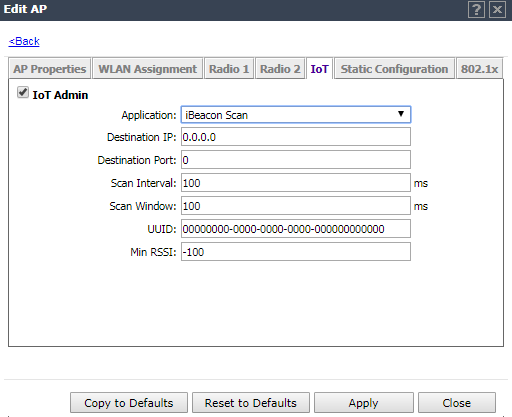
iBeacon Scan Settings
| Field | Description |
|---|---|
| Application | Determines application type. Select iBeacon Scan |
| Destination IP Address | IP address of the customer Application Server that receives the beacon report. |
| Destination Port | Destination Port on the customer Application Server that presents the beacon report. |
| Scan Interval | Determines how long to wait between scans. Valid values are: Min (100ms) and Max (10240ms). The default value is Min (100ms). |
| Scan Window | Determines how long to scan per channel. Valid values are Min (100ms) and Max (10240ms).Value must be less than Scan Interval value. Default value is 100ms. |
| UUID | Identifier used to differentiate a large group of related beacons. A company can have a
network of beacons with the same UUID.
Used for filtering data. ExtremeWireless forwards data with matching UUID to the Application Server and filters out all other UUID data. If UUID configured value is all zeros, no filtering occurs. |
| Min RSSI | This is the signal strength required to include the packet in the BLE report. Valid values: -10 to -100. Default value is -100. Data from beacons with an RSSI that is less than the Min RSSI configured value is filtered out. |
 Print
this page
Print
this page Email this topic
 Feedback
 View PDF
 Download EPUB